 MarineOps
 Phone App Manual › Getting Started
Your Dashboard
Shortcut tiles, live counts and making it your own.
Included in: Every plan
The dashboard is the first thing you see. It's a grid of tiles: some jump you to a screen, others show a live count for the shop.
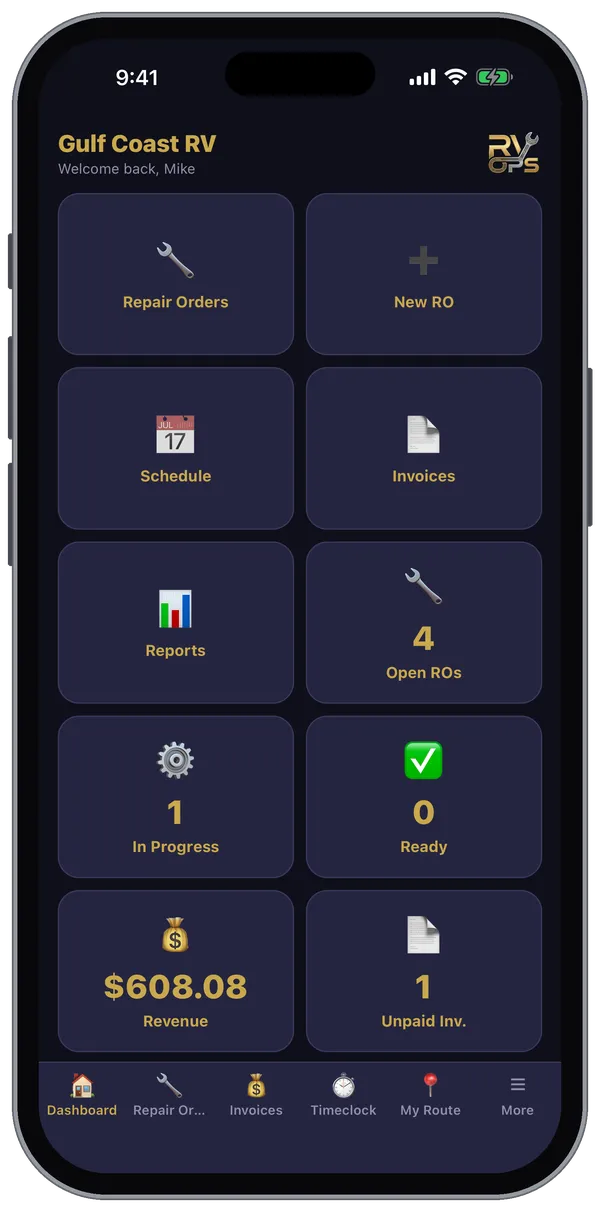
Shortcut tiles
Tap one to jump straight there: Repair Orders, New RO, Check-In, Schedule, Time Clock, My Route, Invoices, Customers, Inventory, Shop Supplies, Parts to Order, Purchase Orders, Dispatch Board, Vendors, Reports, Messages, Settings — plus two camera tiles:
- Scan Key Tag — point the camera at the QR code on a boat's key tag and the repair order opens.
- Scan QR — scan a checkout code to open a customer's checkout for review, signature and payment.
Live count tiles
Open ROs, In Progress, Ready, Waiting Parts, Revenue and Unpaid Invoices show the number right on the tile, updated every time you open the dashboard.
Make it yours
- Tap an empty + Add Tile spot, or go to More → Customize Dashboard.
- Tap any tile to change it, or the ✕ on a tile to clear it.
- Pick the tile you want from the list. If it's already somewhere else on your dashboard, the two swap places.
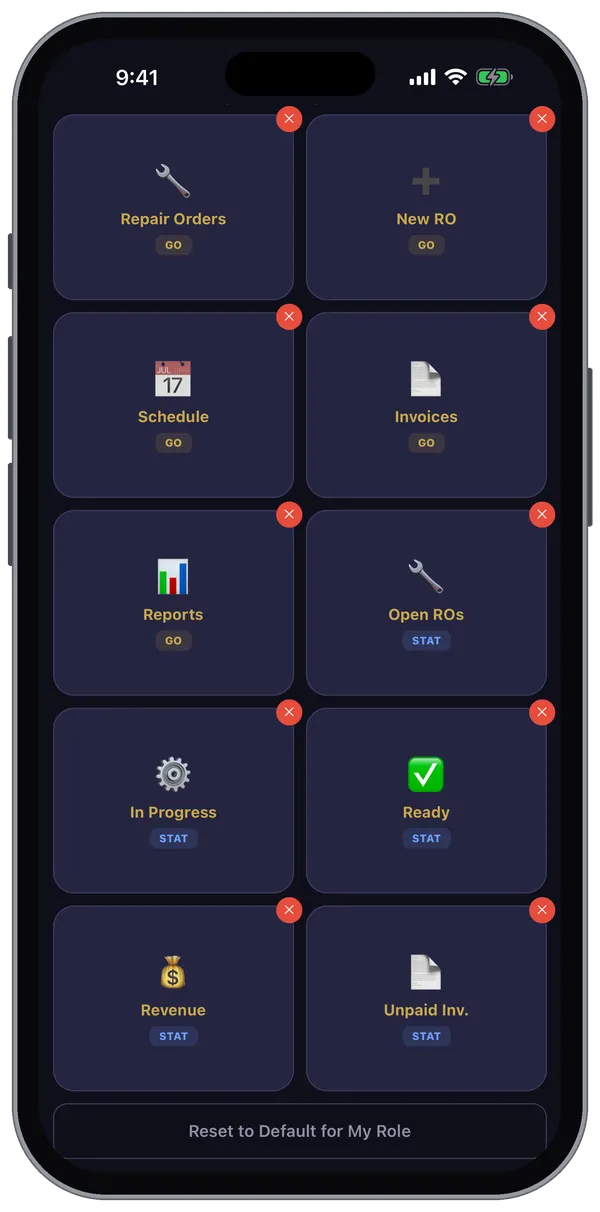
Reset to Default for My Role puts back the standard layout for your job — owners and managers get shop numbers, techs get their ROs, time clock and route.
Your layout follows your login, so it's the same on every phone or tablet you sign in to. You only see tiles your permissions allow.
Still stuck? Send us a message (or email [email protected]) and tell us what you were trying to do — we answer within one business day.