 MarineOps
 Getting Around the App
The app has tabs along the bottom for the things you do all day, and a More tab for everything else.
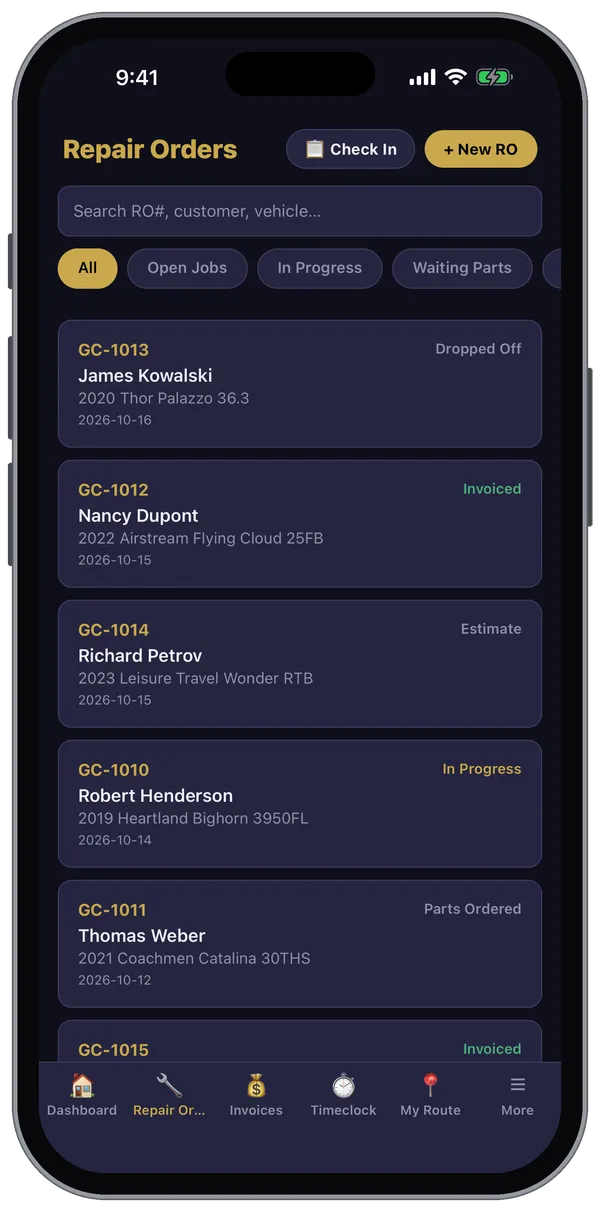
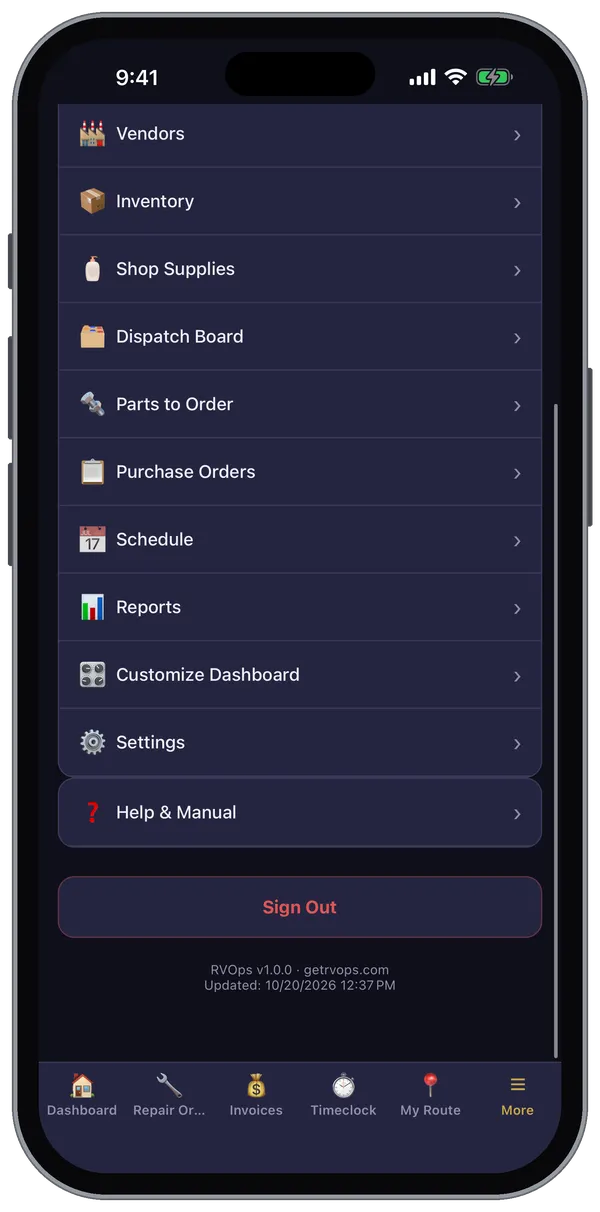
The tabs
| Tab | What's there |
|---|---|
| 🏠 Dashboard | Your shortcut tiles and live counts — see Your Dashboard |
| 🔧 Repair Orders | Every RO you can see, plus Check In and + New RO at the top |
| 💰 Invoices | Invoices and payments (if your login allows it) |
| ⏱ Timeclock | Clock in and out for your shift (Starter plan and up) |
| 📍 My Route | Your road calls for the day |
| ☰ More | Everything else, plus Help and Sign Out |
Tabs you don't have permission for don't appear — a tech who can't see invoices simply won't have an Invoices tab.
Under More
At the top: My To-Do, your private checklist (see My To-Do List). Below that, depending on your login and plan: Customers, Vendors, Inventory, Shop Supplies, Dispatch Board, Parts to Order, Purchase Orders, Schedule, Reports, Customize Dashboard and Settings. At the bottom: Help & Manual (this manual), Sign Out, and the app version.
Going back
Tap the gold ‹ at the top left of a screen, or swipe from the left edge on an iPhone. On Android you can also use the phone's back button or gesture.
Refreshing
Lists update on their own, but you can always pull down on a list to refresh it.
Phones and tablets
The app works in portrait and landscape and lays itself out for tablets. A tablet at the counter or mounted in the bay works well for check-ins and customer signatures.