 MarineOps
 Phone App Manual › Owners & Managers
Settings & Device Setup
Your profile, password, shop info, printer and shared tablets.
Included in: Every plan
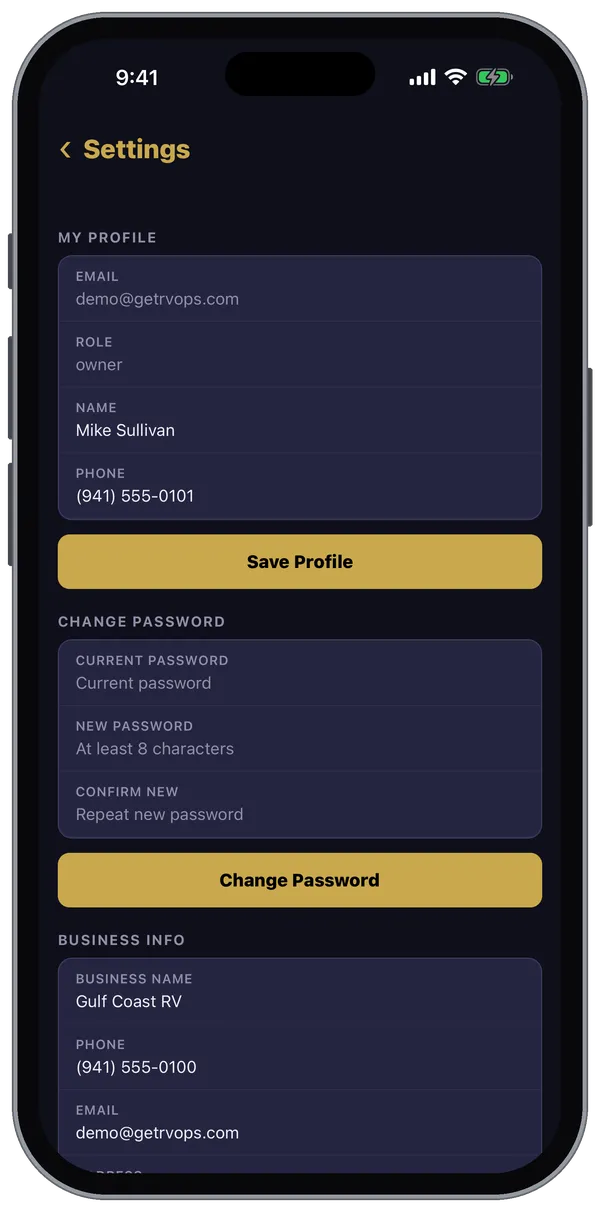
More → Settings holds your own profile, and — for owners and managers — a few shop settings that are handy to have on your phone.
For everyone
- My Profile — your name and phone. Tap Save Profile.
- Change Password — your current password, then the new one twice (at least 8 characters).
- Customize Dashboard — see Your Dashboard.
For owners and managers
- Business Info — shop name, phone, email, address, labor rate, tax rate, shop supply percentage and RO prefix.
- Key Tag Printer — the IP address of the shop's Zebra printer, so key tags print from check-in and the RO.
- Bay Board — get and share the link for the shop TV (Pro plan and up).
- Inspection Templates — build and edit inspection checklists (Pro plan and up).
- Device Setup — see below.
Setting up a shared shop tablet
Device Setup walks through the one-time steps before you hand a phone or tablet to a tech: allowing the microphone so techs can talk instead of type, and — on Android tablets — turning on screen pinning so the device stays in MarineOps. (On an iPad, Apple's Guided Access in Settings → Accessibility does the same job.)
Staff, permissions, payments, QuickBooks and the rest of your shop setup are on the web version under Settings.
Still stuck? Send us a message (or email [email protected]) and tell us what you were trying to do — we answer within one business day.