 MarineOps
 Phone App Manual › Time & Road Calls
The Time Clock
Clock in and out for your shift.
Included in: Starter plan and up
The Timeclock tab is your shift clock — the time you're at work. It's separate from clocking in on a job inside a repair order, which tracks time against each job's flag hours.
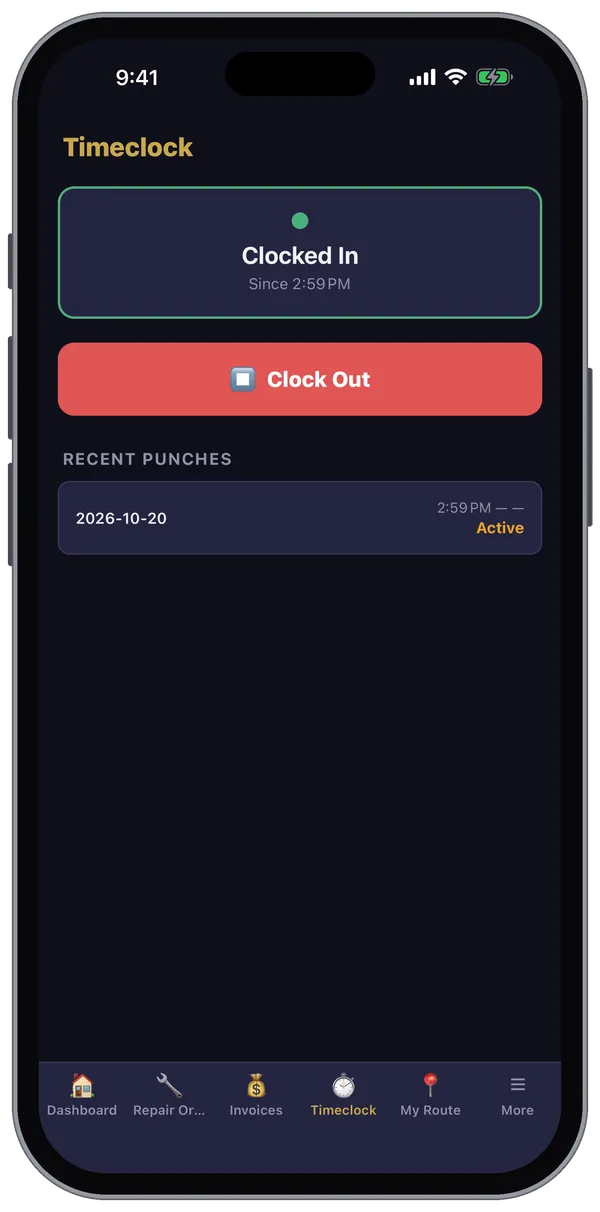
- Tap the Timeclock tab.
- Tap the big ▶ Clock In button when you start your shift. The card turns green and shows the time you clocked in.
- Tap ⏹ Clock Out when you leave — including for lunch.
Recent Punches lists your last clock-ins and clock-outs with the hours for each. A punch still running shows Active.
Forgot to clock out? Tell your manager — they can fix punches on the web version. Timesheets and pay reports are on the web version too.
The Timeclock tab only appears on the Starter plan and up.
Still stuck? Send us a message (or email [email protected]) and tell us what you were trying to do — we answer within one business day.