 MarineOps
 Help Center › Getting Started
Adding Staff & Permissions
Give techs, writers and managers their own logins and control what they see.
Included in: Every plan
Every person who uses MarineOps gets their own login. That way the time clock knows who's punching in, the repair order history shows who changed what, and each person only sees what they need.
Add a staff member
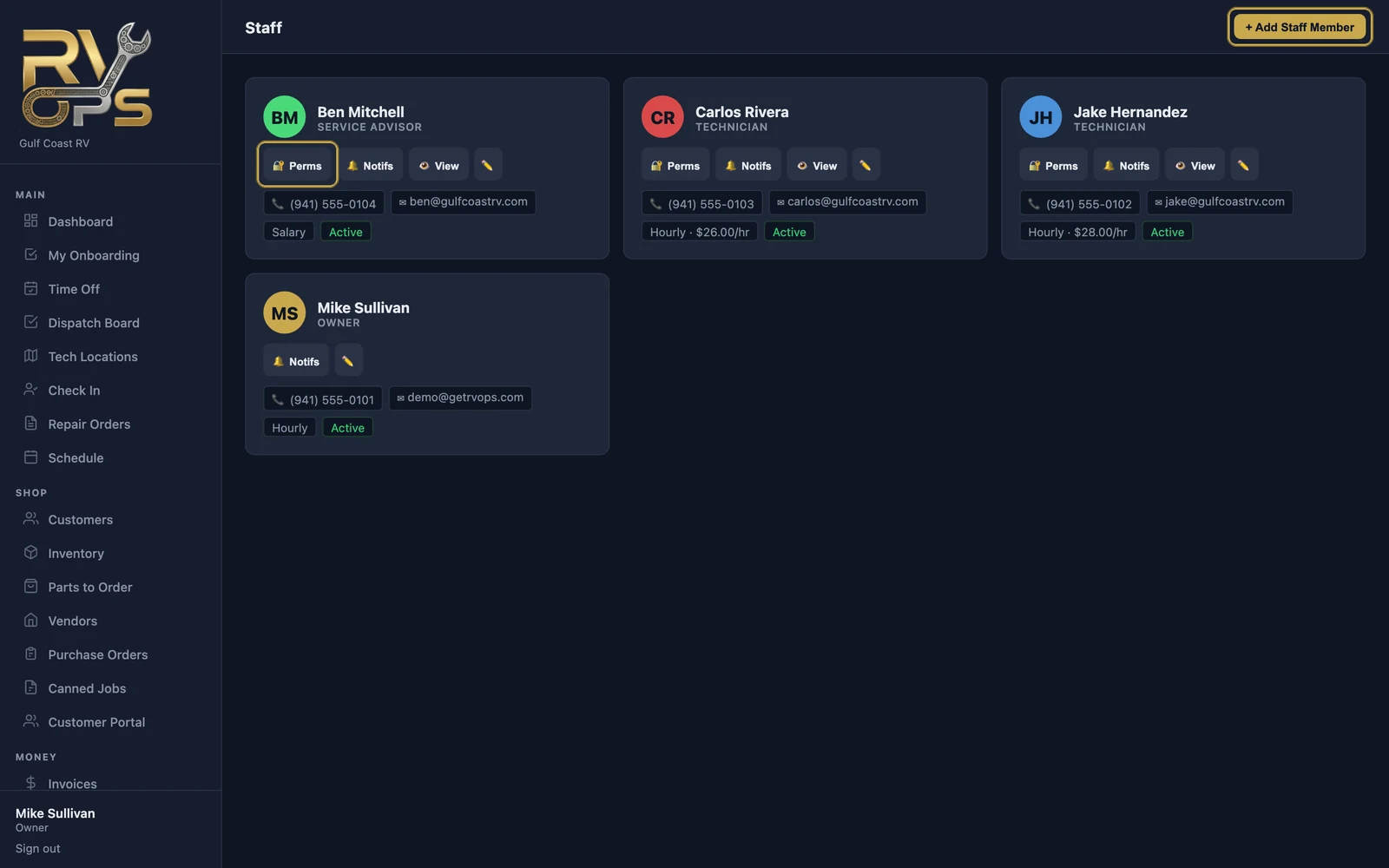
- In the left menu, open Team → Staff.
- Click + Add Staff Member in the top right.
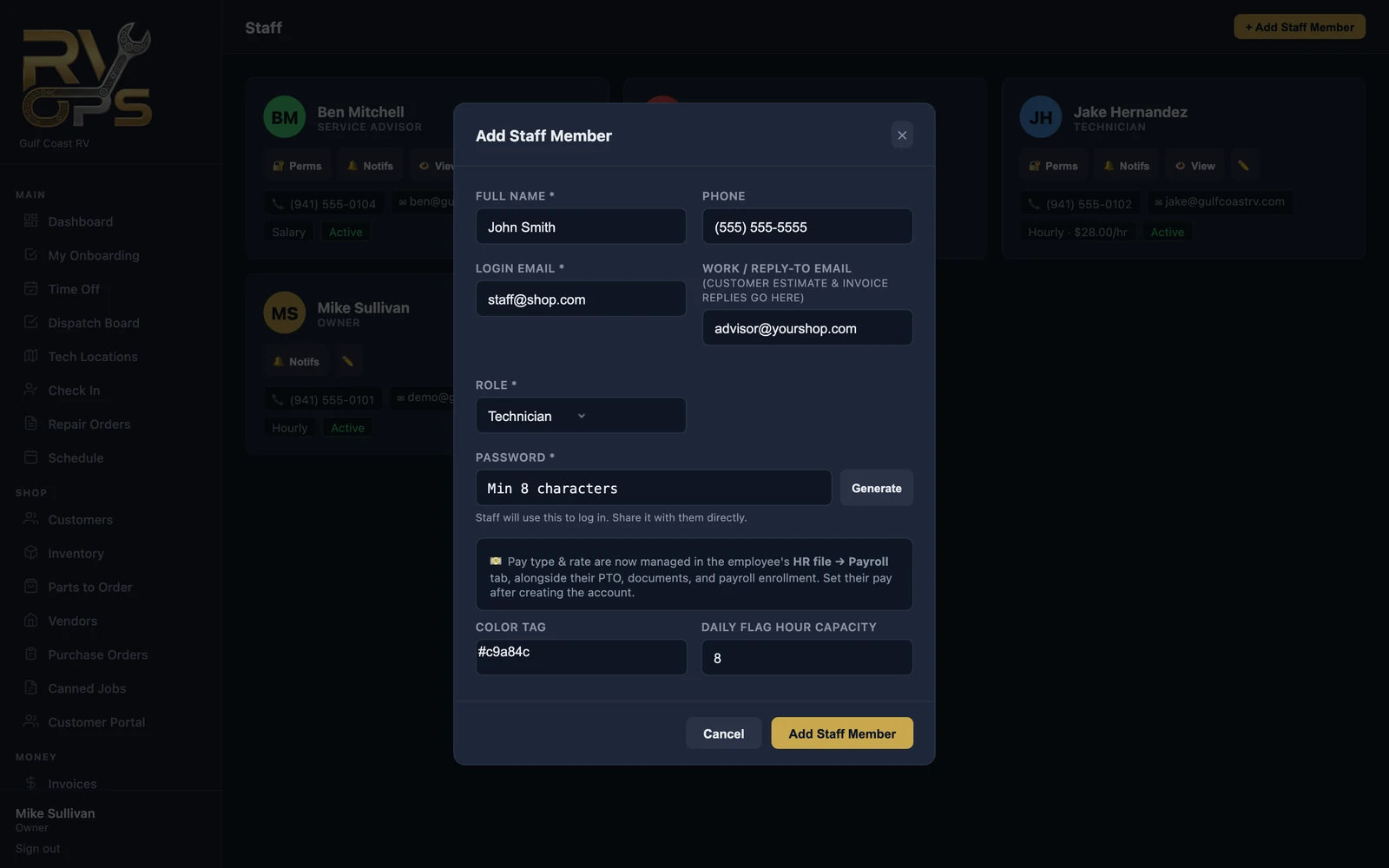
- Enter their full name and the email they'll log in with.
- Pick their role (see the table below).
- Click Generate to create a temporary password, or type one. They'll be asked to choose their own the first time they log in.
- Optional: a color tag (how their jobs look on the schedule), their pay, and their daily flag hour capacity (how many hours of work the schedule should plan for them each day).
- Click Add Staff Member, then give them their email and temporary password.
Roles
| Role | Typical person | Starts with access to |
|---|---|---|
| Technician | Bay and road call techs | Their assigned work, cause & correction, photos, the time clock |
| Service Advisor | Service writers, front counter | Repair orders, customers, estimates, invoices and payments |
| Dispatcher | Whoever runs the schedule | The schedule, dispatch board and road calls |
| Manager | Shop or service manager | Nearly everything except billing |
| CPA / Accountant | Your bookkeeper | Invoices and financial reports |
| Owner | You | Everything, always |
Fine-tune permissions
The role is just a starting point. Click 🔐 Perms next to anyone to switch individual permissions on or off — for example, letting a lead tech create repair orders, or hiding prices from techs.
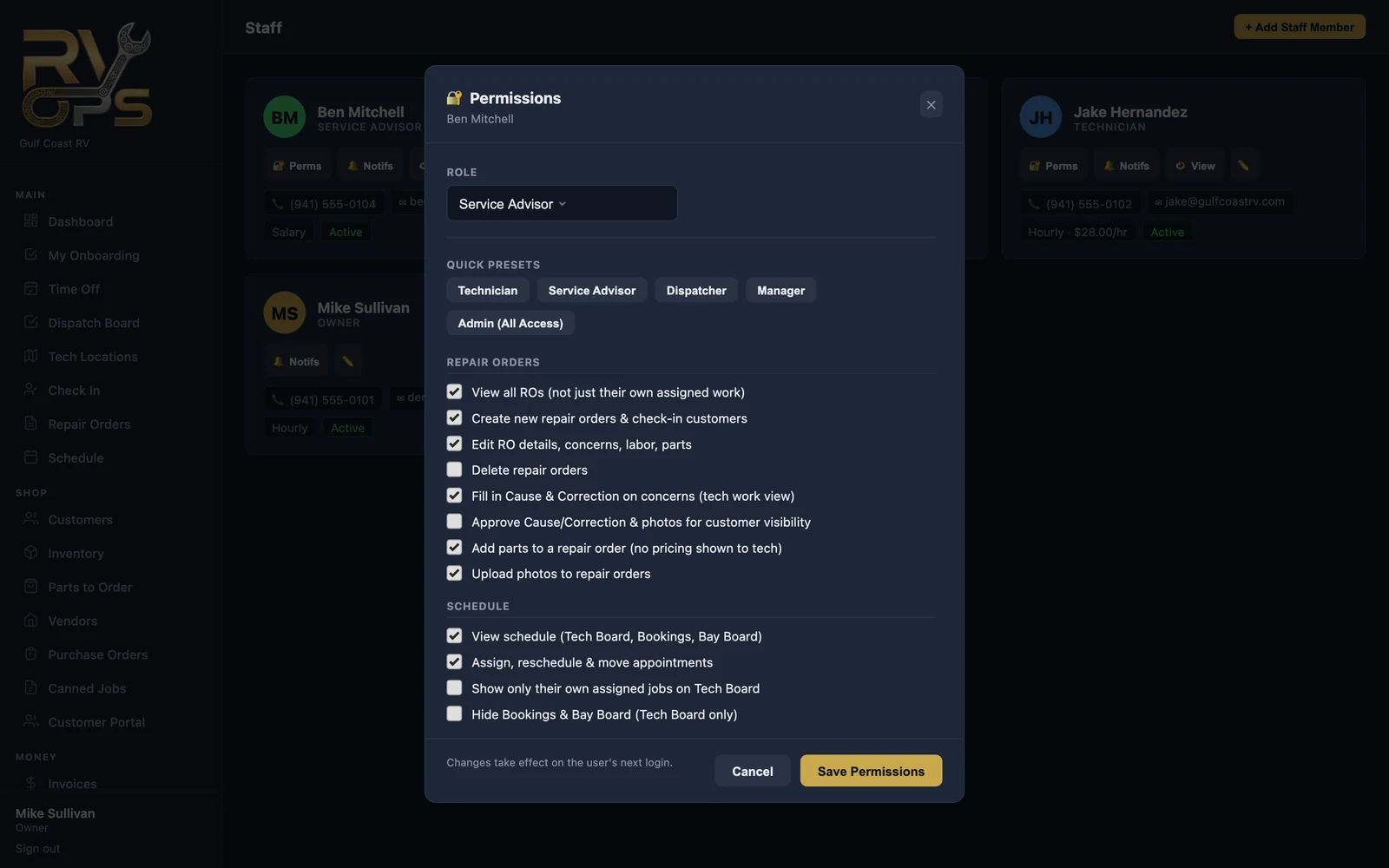
A few you'll probably want to look at:
- View all ROs — off means techs only see repair orders assigned to them.
- Add parts to a repair order (no pricing shown to tech) — lets techs request parts without seeing your prices.
- Change prices & discounts — who can override labor rates, part prices, discounts and tax.
- View pay reports — who can see wages and dollar totals.
Click 👁 View next to a staff member to see MarineOps exactly the way they see it. It's the fastest way to check a permission change.
When someone leaves
Click ✏️ next to their name, set Status to Inactive and save. They're logged out of every device at once, and their history stays on every repair order and timesheet.
Each plan includes a number of staff logins besides the owner — Solo includes 1, Starter 5, Pro 10 and Elite 20. Inactive staff don't count.
Still stuck? Send us a message (or email [email protected]) and tell us what you were trying to do — we answer within one business day.