 MarineOps
 Concerns: Complaint, Cause, Correction
Each problem on a boat gets its own concern. A concern holds the customer's complaint, what you found, what you did, and the labor and parts for that one job. Splitting work into concerns means the customer can approve or decline each job separately, each job can be billed to a different payer, and your invoice reads like a professional write-up.
The three Cs
| What it says | Example | |
|---|---|---|
| Concern (complaint) | What the customer told you, in their words | Power awning won't retract |
| Cause | What the tech found | Awning motor gearbox stripped |
| Correction | What was done to fix it | Replaced Lippert awning motor, tested full travel |
Warranty companies and extended service contracts expect all three. Writing them on every job also answers most "what did you do to my boat?" calls before they happen.
Add a concern
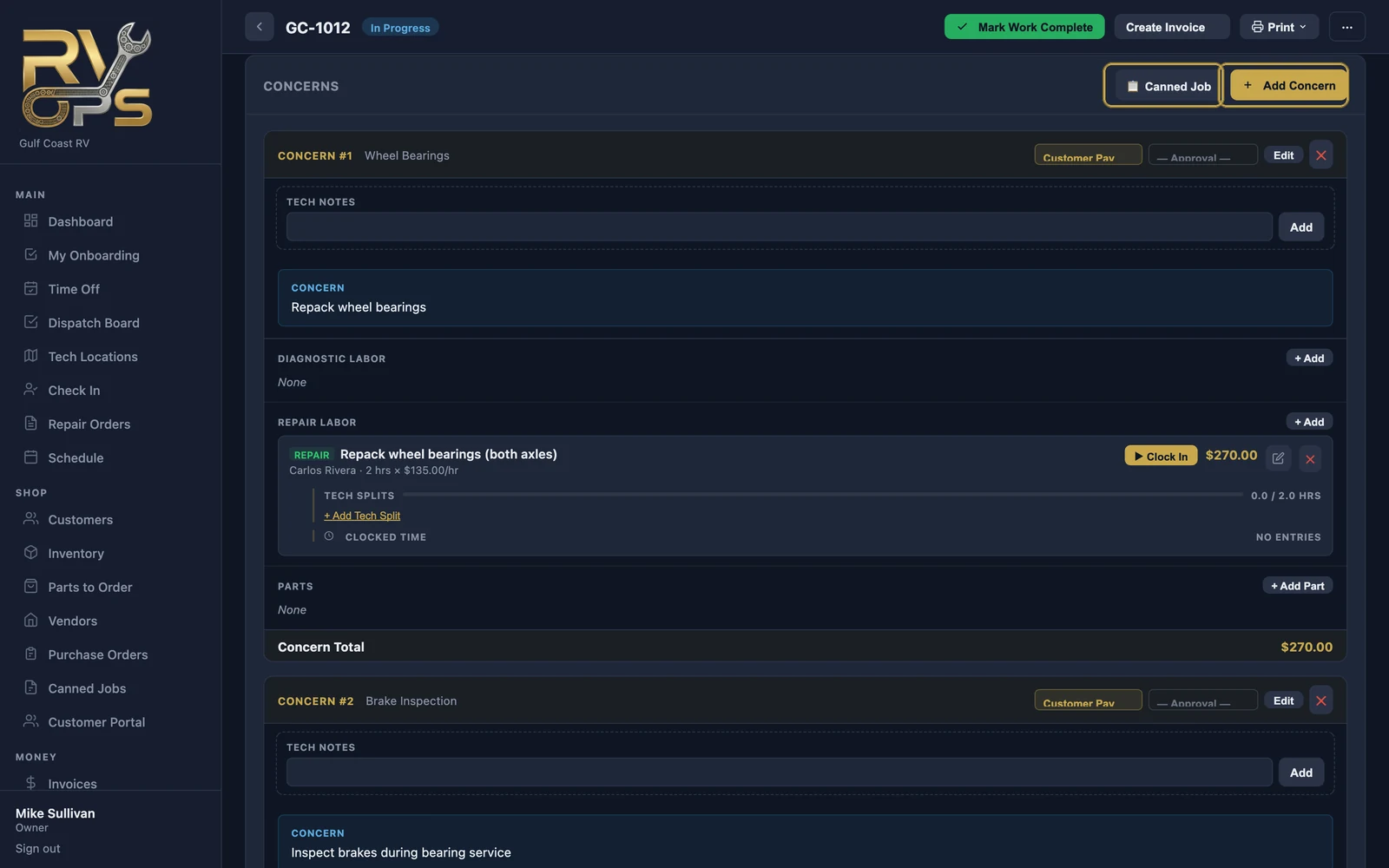
- On the RO, click Add Concern in the Concerns section.
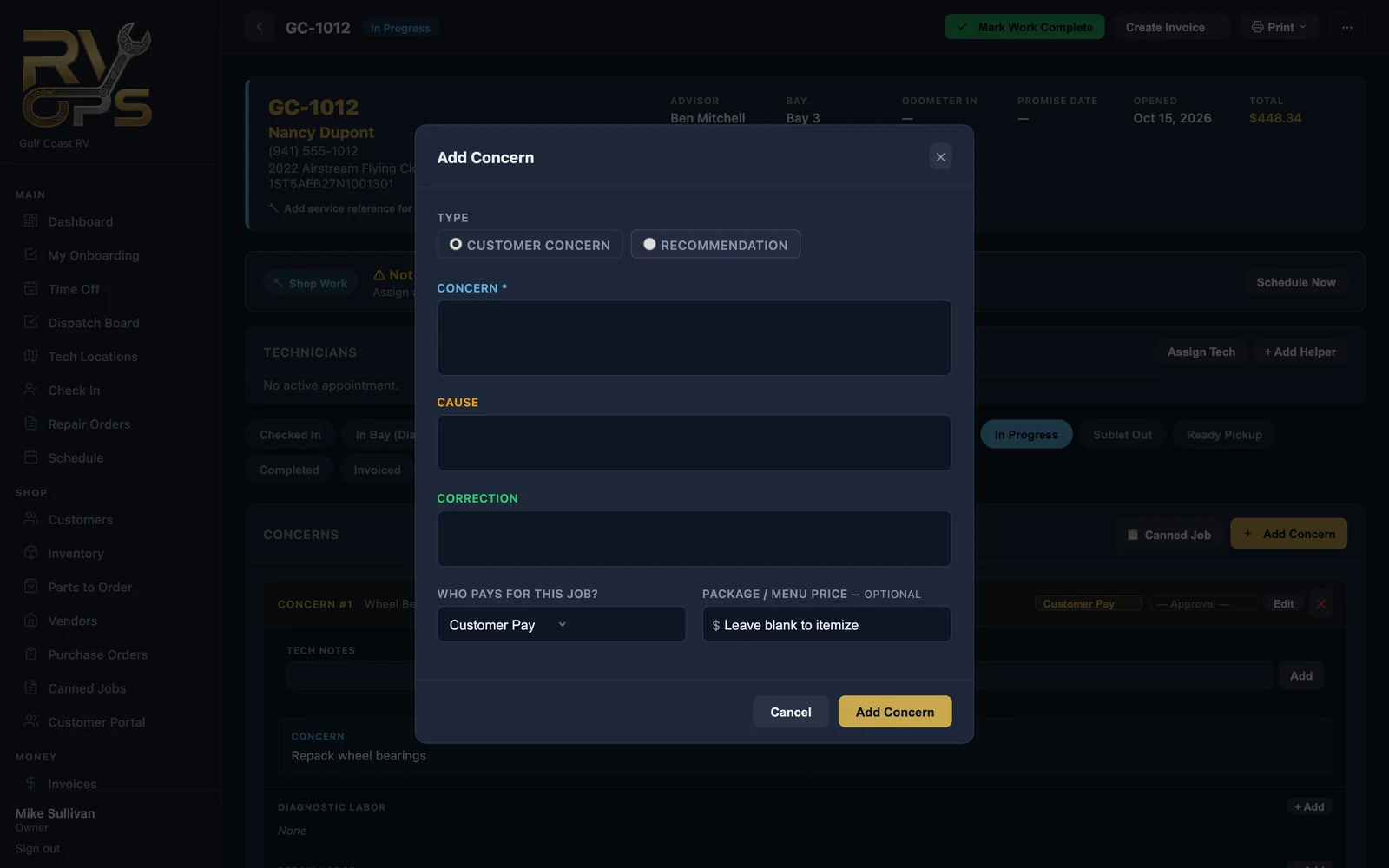
- Choose the type: a Customer Concern (they asked for it) or a Recommendation (you found it and are suggesting it).
- Type the Concern. Cause and Correction can wait until the work is done.
- Pick who pays: Customer Pay, Insurance, Warranty, or Internal (shop / goodwill).
- Optional: a package or menu price — the customer sees one flat price for this job, while MarineOps still tracks the real labor hours and parts behind it for tech pay and costs.
- Click Add Concern.
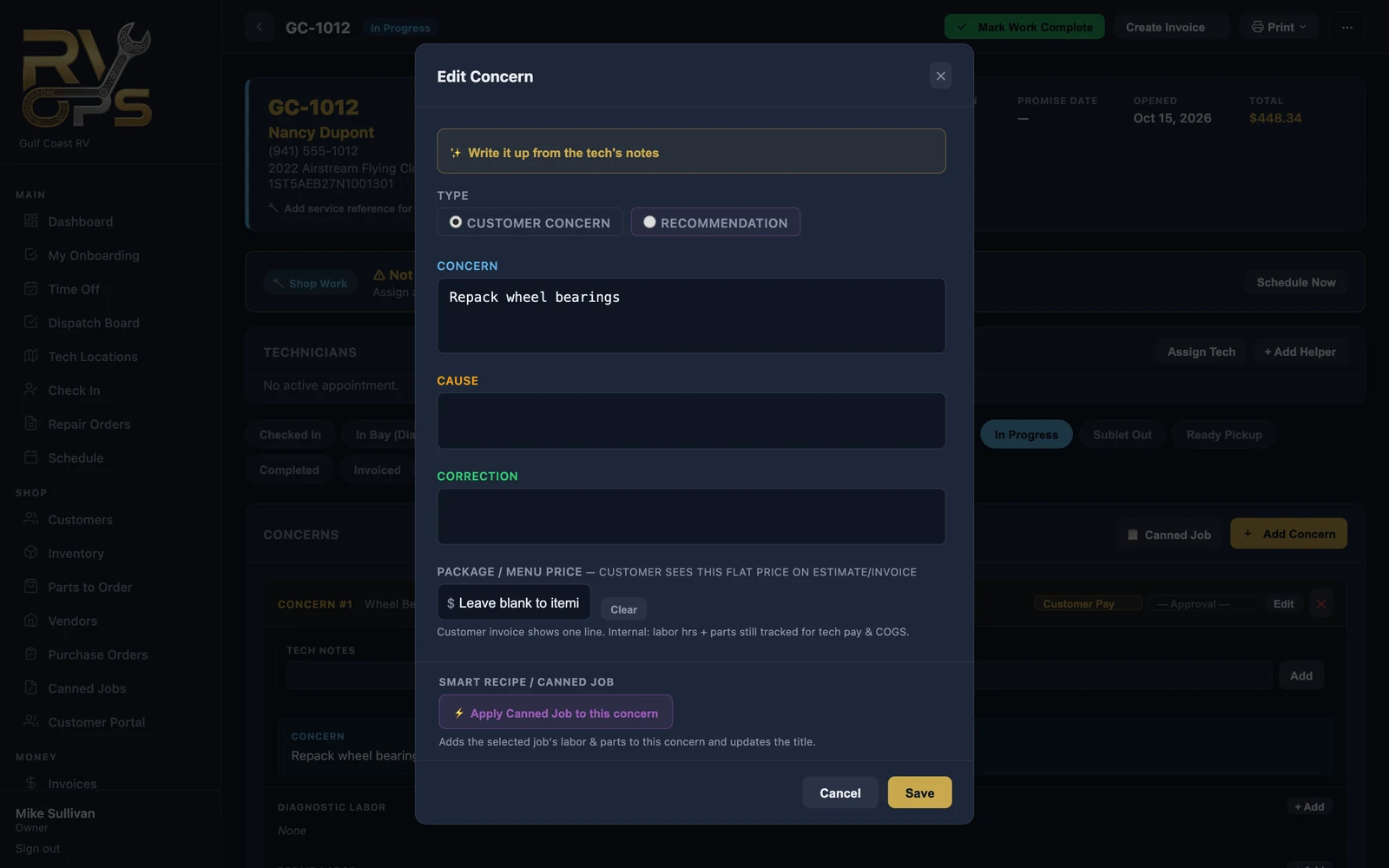
Edit a concern and fill in cause and correction
Click Edit on the concern card. Techs fill in the cause and correction from the tech app or the web as they work; on Pro and up you can also drop a canned job onto the concern to add its labor and parts in one click.
Tech notes
The Tech Notes box at the top of each concern is the running log for that job — what was tested, what was found, measurements. Type a note and click Add; each note is stamped with who wrote it and when.
Customer approval and who pays
Next to Edit on each concern are two pickers: who pays for the job and its approval status (approved, declined or waiting). Approvals usually come in from the customer through the portal — see Customer Approvals — but you can set them by hand when a customer approves over the phone.