 MarineOps
 The Schedule
The Schedule is where drop-offs, pickups, shop work and road calls get booked, and where you see at a glance whether each tech's day is full. It has several views of the same appointments — pick whichever fits the question you're asking.
The views
| View | Answers |
|---|---|
| 📅 Bookings | What's coming in this week, hour by hour (Week or List) |
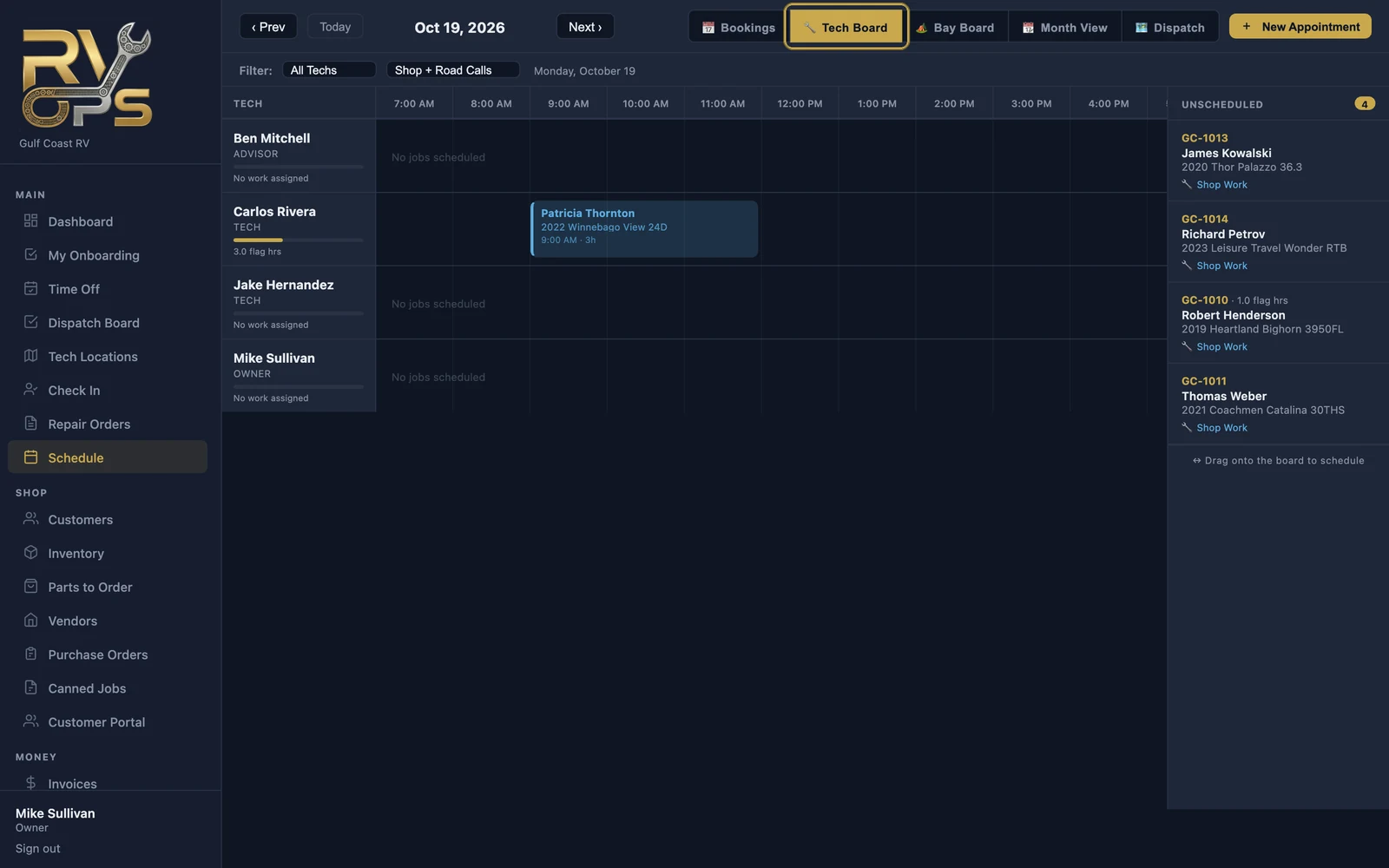
| 🔧 Tech Board | Who's working on what today, and how full each tech's day is |
| 🏕️ Bay Board | Which bays are booked over the next two weeks (Pro and up) |
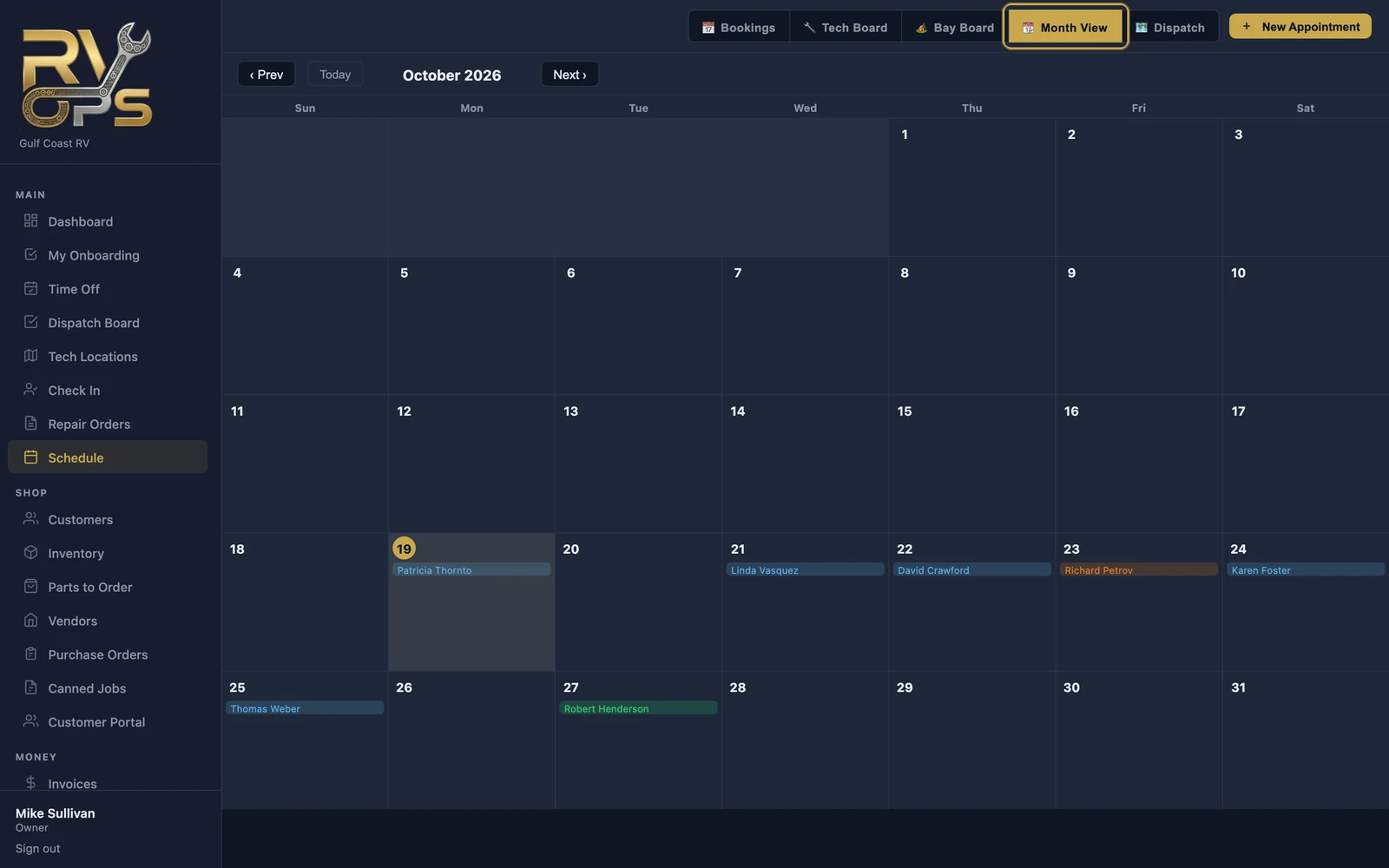
| 📆 Month View | The whole month at once |
| 🗺️ Dispatch | Today's road calls and boats waiting to be dispatched |
Use ‹ Prev, Today and Next › to move through time.
The Tech Board
Each tech gets a row across the day. Booked jobs show as blocks, and the bar under each name shows booked flag hours against that tech's daily capacity — so you can see who has room before you promise a customer a day.
Book an appointment
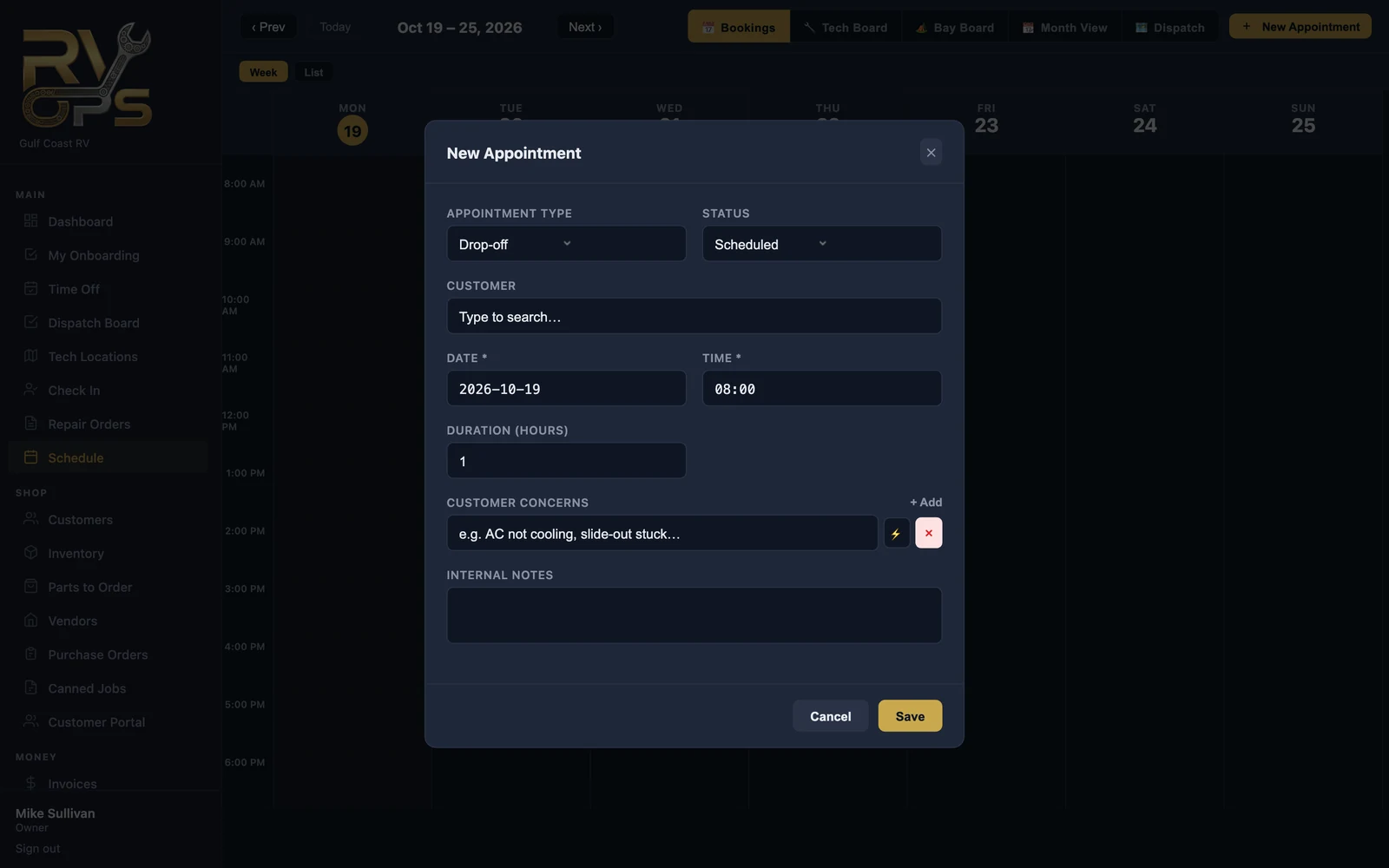
- Click New Appointment.
- Pick the type: Drop-off, Pickup, Consultation / Estimate, Shop Work or Road Call.
- Choose the customer, the date, time and how many hours it should take.
- Add the customer's concerns — one per line. On Pro and up, ⚡ drops in a canned job.
- Add internal notes if needed and click Save.
When the boat arrives, check it in from the appointment (or its repair order) and the concerns you typed carry over.
Scheduling an existing repair order
On any RO that says ⚠ Not yet scheduled, click Schedule Now to give it a date, time and tech — or drag it from Unscheduled on the Tech Board.
Month View
Who can see what
You can limit techs to seeing only their own jobs, or only the Tech Board, with the schedule permissions under staff permissions.