 MarineOps
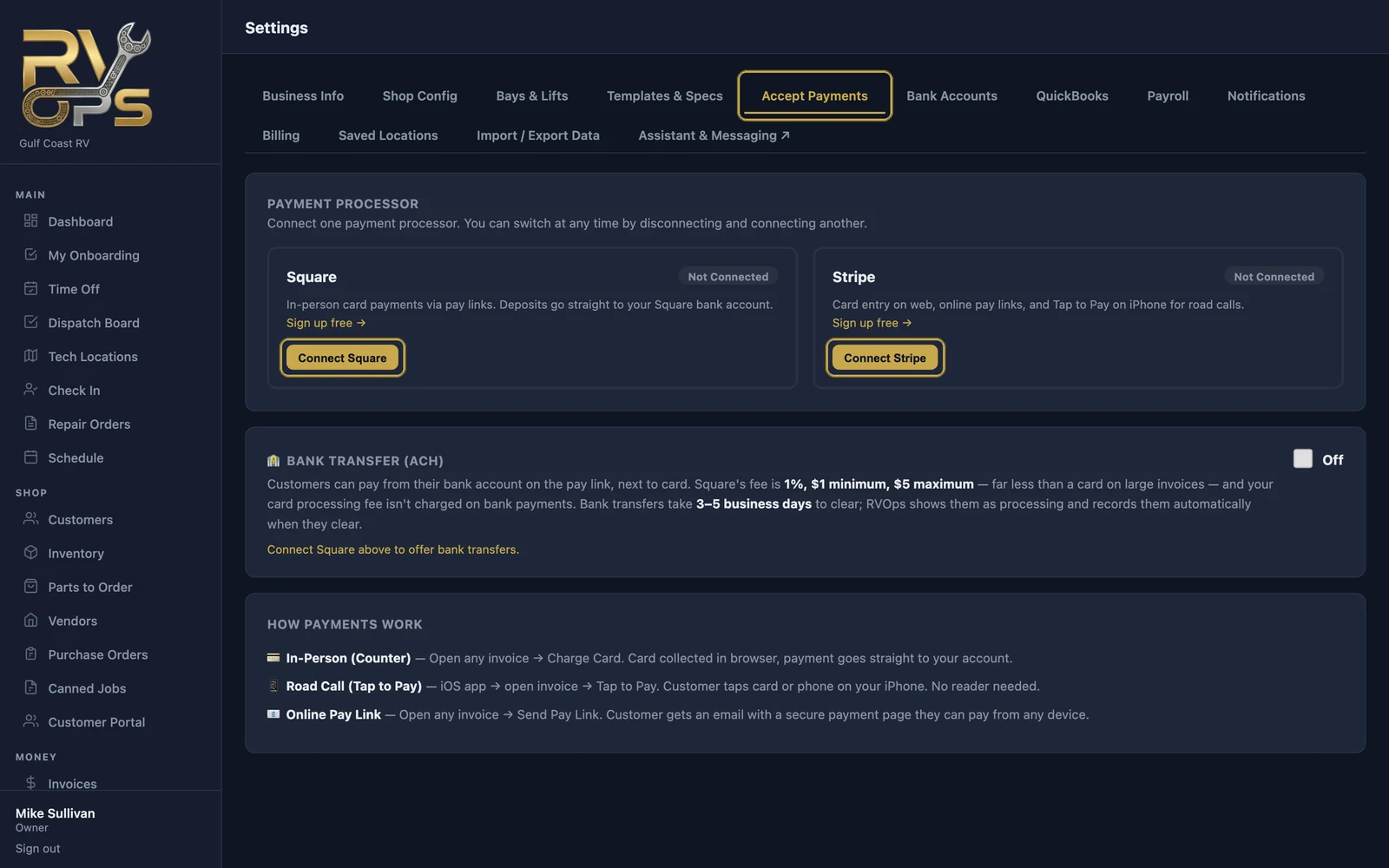
 Connecting Card Payments
Connect one card processor — Square or Stripe — so you can take payments three ways: at the counter, on road calls, and with an online pay link the customer opens on their own phone. Money goes straight into your own Square or Stripe account. MarineOps never holds your funds, adds no fee and takes no cut — you pay Square's or Stripe's normal processing rates directly to them, and they pay out to your bank on their usual schedule.
Square or Stripe?
| Square | Stripe | |
|---|---|---|
| Best for | Shops that already use Square or want Tap to Pay on a phone | Shops that mostly take online and counter card payments |
| Online pay links | ✓ | ✓ |
| Customer portal payments | ✓ | ✓ |
| Key in a card at the counter (web version) | ✓ | ✓ |
| Tap to Pay on a phone (tech app) | ✓ through the Square app | — not yet (send a pay link instead) |
| Bank transfer (ACH) on pay links | ✓ (Square's fee: 1%, $1 min, $5 max) | — |
| Refunds from MarineOps | ✓ | ✓ |
| Refunds made in the processor's own dashboard | Record them in MarineOps yourself (void the payment) | Recorded in MarineOps automatically |
| Use an account you already have | ✓ | ✓ |
One at a time: a shop uses one processor. To switch, click Disconnect on the one you have, then connect the other.
Connect
- Open Settings → Accept Payments.
- Square: click Connect Square, log in to Square (or sign up there) and approve the connection.
- Stripe: choose one —
- I already have a Stripe account — sign in to the Stripe account your shop already uses and click Connect. Nothing new is created.
- Create a new Stripe account — Stripe sets up an account for your shop and asks for your business details, identity and the bank account for payouts.
- You come back to MarineOps and the processor shows as Connected.
Disconnect stops MarineOps from charging through your Square or Stripe account. Your account itself, and the money in it, stay exactly as they were.
What your customers get
- A pay link by email — the invoice with a secure Pay button. The payment page shows the invoice and its total, and takes a card (and a bank account, if you turned on ACH with Square). The card is typed into Square's or Stripe's own secure box — MarineOps never sees or stores card numbers.
- A confirmation on screen the moment the payment goes through. The invoice turns Paid in MarineOps by itself, and owners and managers get an "Invoice Paid" notification.
- A receipt when you send one — on a paid invoice, Send Invoice emails a receipt.
- A card fee line, only if you turn it on — see Passing card fees on.
Bank transfers (ACH)
With Square connected, you can switch on Bank Transfer (ACH). Customers then see "pay from bank account" next to card on their pay link. It costs far less than a card on big invoices, and your card processing fee isn't added. Bank payments take 3–5 business days to clear; MarineOps shows them as processing and records them automatically when they clear.
Taking a payment
Once you're connected, see Taking Payments.