 MarineOps
 Help Center › Check-In, Estimates & Approvals
The Customer Portal
What your customers see and how to share it.
Included in: Every plan
The customer portal is your shop's own page where customers check on their boat, see photos, approve estimates, pay invoices and message you — from any phone, with no app and no password. Every link you send them (estimates, invoices, ready-for-pickup emails) opens it.
What customers can do
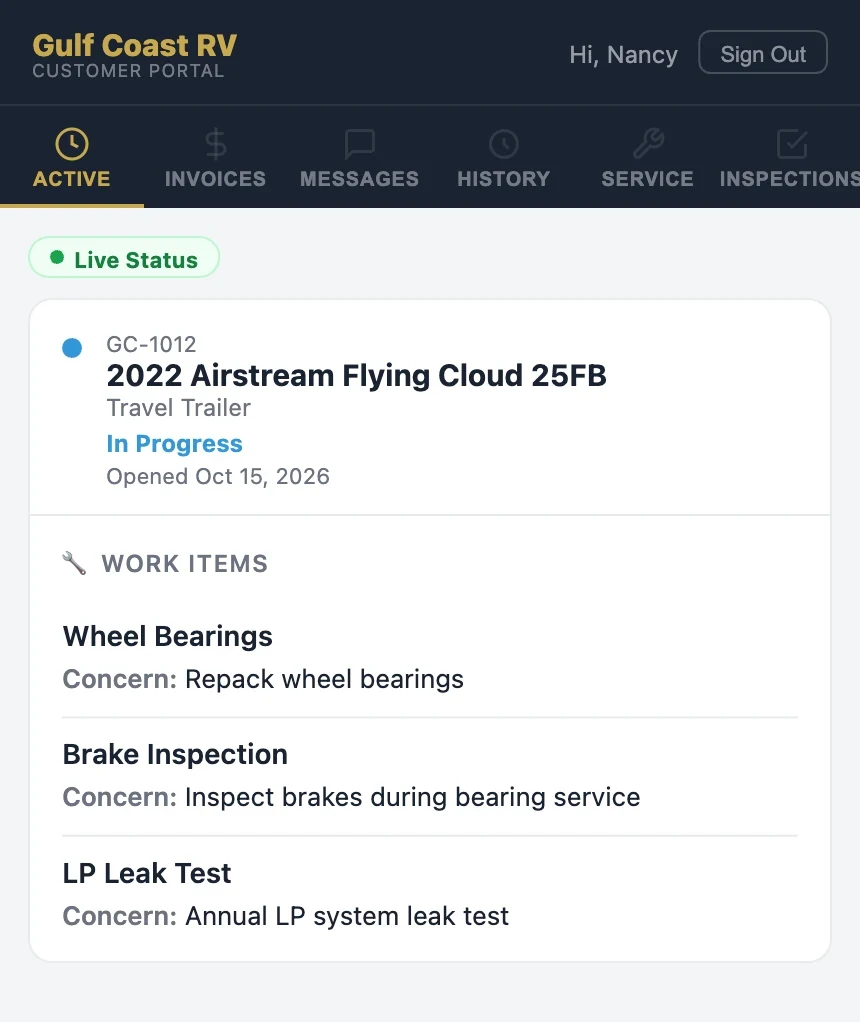
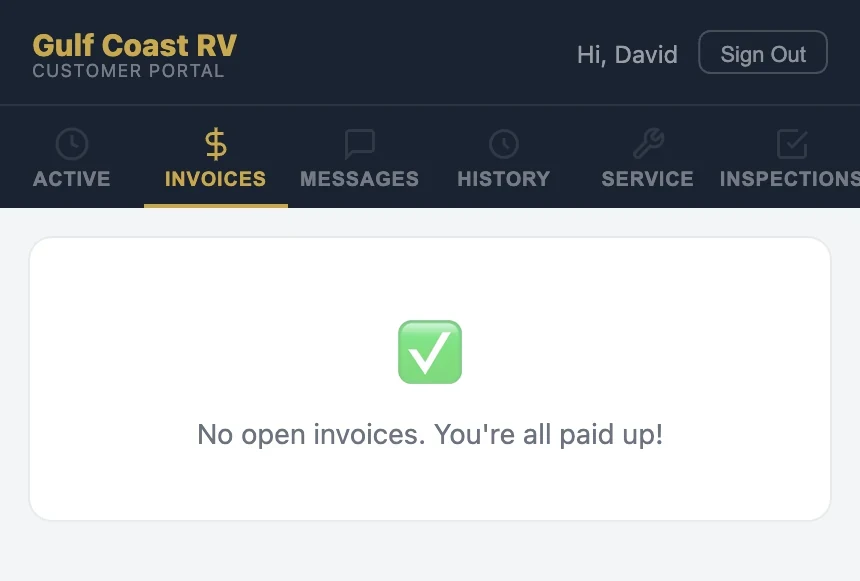
| Tab | What's there |
|---|---|
| Active | Live status of each boat you're working on and every job on it |
| Invoices | Open invoices they can pay online, and receipts |
| Messages | A conversation with your shop — you answer from the RO or the Customer Inbox |
| History | Every completed visit |
| Service | Maintenance records and what's coming due on their boat |
| Inspections | Results of completed inspections on their boat |
Photos only appear if you've shared them (see Photos & Tech Notes), and they only see the concern, cause and correction you've written — never internal notes.
How customers get in
- From any link you send — estimate, invoice and status emails sign them straight in.
- From your portal address — they type their email and get a one-time sign-in code. No password to forget.
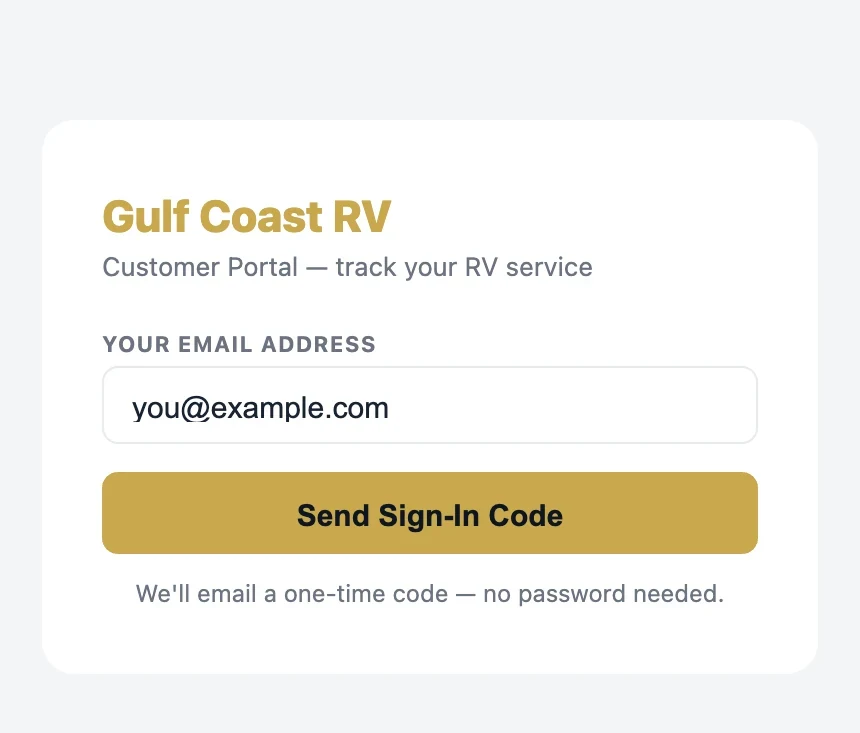
Your portal address
Set a short address under Settings → Business Info → Customer Portal, like getrvops.com/gulfcoastrv. Put it on your website, your invoices and your business cards. Customer Portal in your left menu opens it so you can see what customers see.
Under Settings → Business Info → Portal Usage you can see how many customers are logging in, approving estimates and sending messages.
Still stuck? Send us a message (or email [email protected]) and tell us what you were trying to do — we answer within one business day.