 MarineOps
 Help Center › Shop Tools
Key Tags & Zebra Printers
Print key tags and labels.
Included in: Starter plan and up
MarineOps prints key tags, window stickers, filter labels and shelf labels on a Zebra label printer. Key tags are the big one: every set of keys tagged with the RO number, customer and boat the moment it's checked in, with a scannable code.
Connect your printer
- Connect the Zebra printer to your shop network and note its IP address (print a configuration label from the printer, or look in your router).
- Open Settings → Shop Config → Zebra Label Printer.
- Enter the printer IP address and port (usually 9100).
- Choose what prints automatically at check-in: key tag only, key tag + window sticker, window sticker only, or nothing.
- Click Save Printer Settings, then Test Connection.
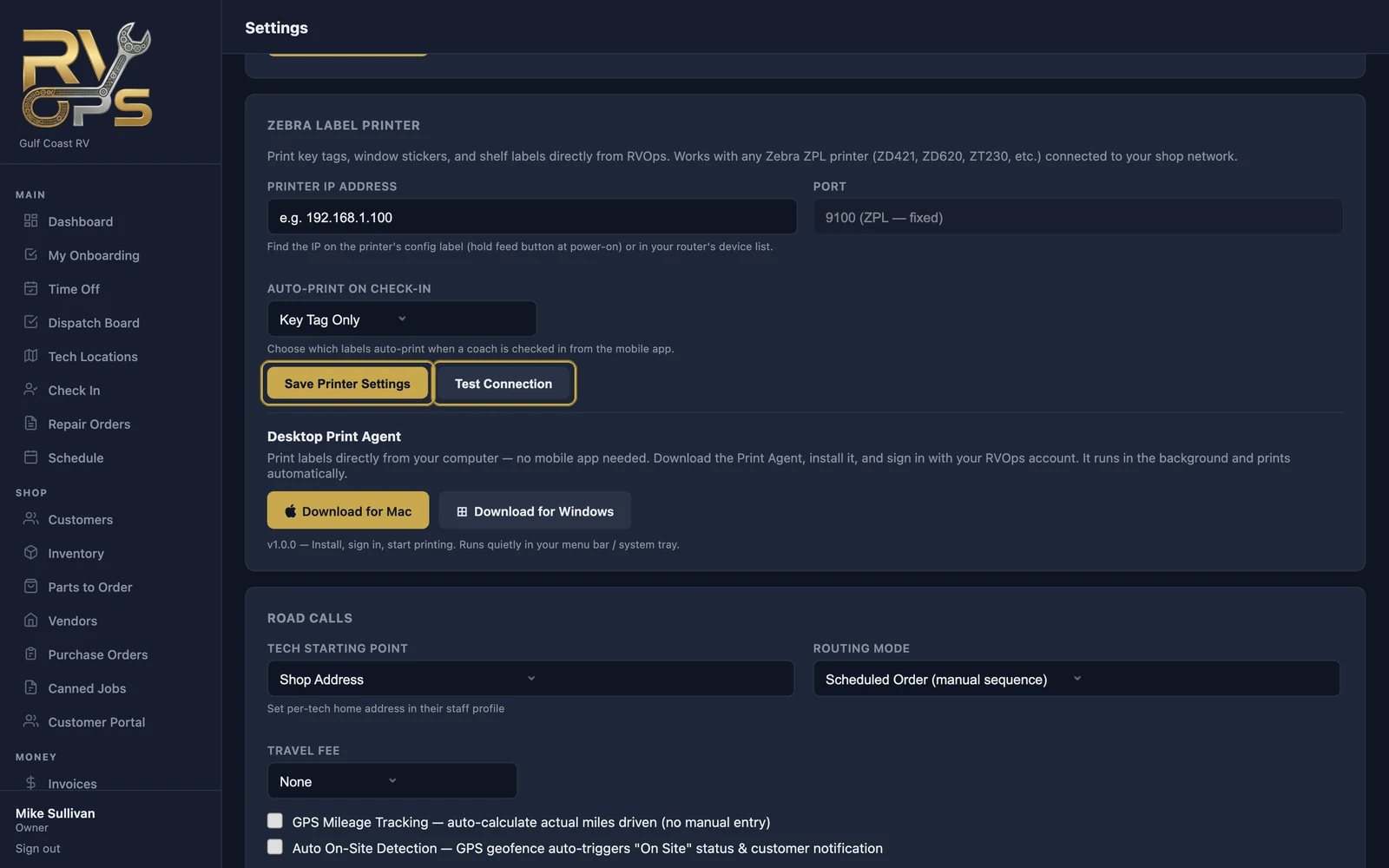
Printing from a computer: the Desktop Print Agent
Web browsers can't talk to a network printer directly, so on computers MarineOps uses a small Desktop Print Agent that runs quietly in your menu bar or system tray. Install it from the same settings section, sign in once, and labels print from any page in MarineOps. The tech app on phones and tablets prints straight to the printer on your shop Wi-Fi.
What you can print
| Label | From |
|---|---|
| Key tag | Check-in (automatic), or Print → Print Key Tag on the RO |
| Window sticker | Check-in (automatic), or Print → Print Window Sticker |
| Filter label | Print → Print Filter Label on the RO |
| Shelf / bin label | 🏷️ next to a part in Inventory |
In the tech app, Scan Key Tag on the dashboard opens the RO from the code on a key tag.
Still stuck? Send us a message (or email [email protected]) and tell us what you were trying to do — we answer within one business day.