 MarineOps
 Help Center › The Tech App
Scanning HINs, Plates & Parts
Use the camera instead of typing.
Included in: Every plan
The tech app uses the phone's camera so you type less and make fewer mistakes.
| Scan | Where | What it does |
|---|---|---|
| HIN | New RO and Check-In | Scan the HIN barcode, or snap a photo of the HIN plate — the year, make and model fill in |
| License plate | Check-In | Snap the plate and MarineOps reads it for you |
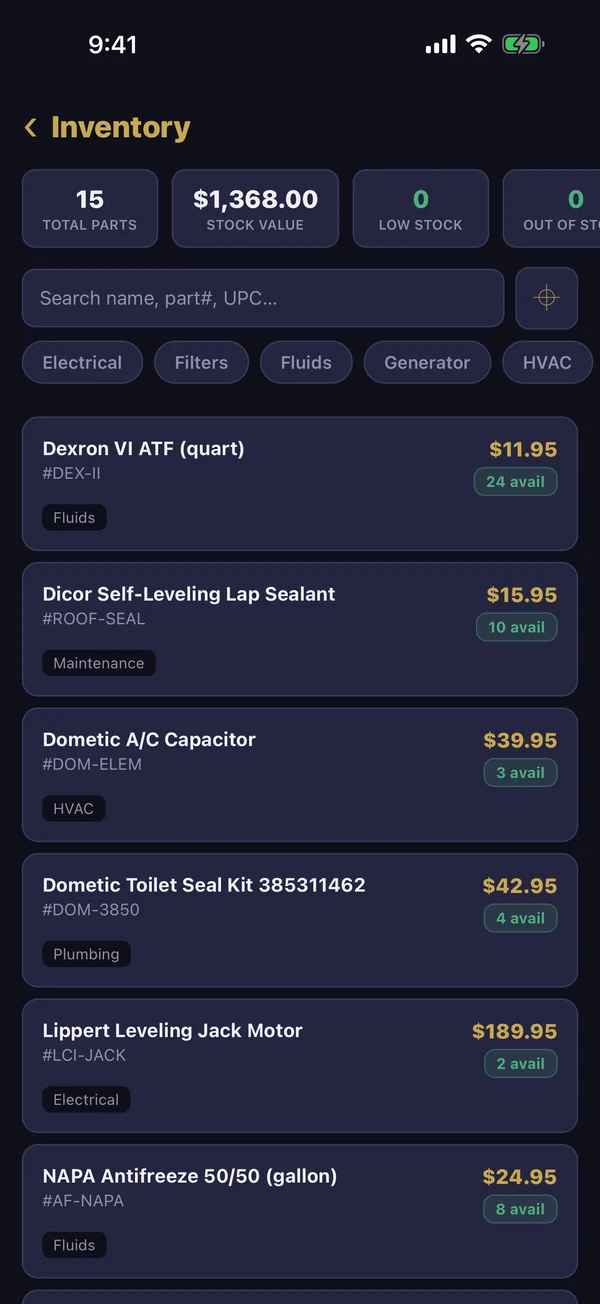
| Part barcodes | Inventory, Receive Stock, Shop Supplies | Find a part or receive it by scanning the box |
| Key tags | Dashboard → Scan Key Tag | Opens the repair order for those keys |
| Customer QR | Dashboard → Scan QR | Opens a customer's checkout to review, sign and pay |
Tips for good scans
- Allow camera access when the app asks the first time. If you said no, turn it on in your phone's Settings → MarineOps → Camera.
- For a HIN, aim at the barcode on the door jamb or windshield sticker. If it won't read after a few seconds, the app switches to photo mode — snap the printed HIN instead.
- Good light helps — in a dark bay, use a shop light or have someone hold a flashlight on the HIN plate.
Still stuck? Send us a message (or email [email protected]) and tell us what you were trying to do — we answer within one business day.