 MarineOps
 Help Center › Check-In, Estimates & Approvals
Sending Estimates
Send an estimate the customer can approve from their phone.
Included in: Every plan
An estimate is simply a repair order whose work hasn't been approved yet. You write the concerns, labor and parts as usual, then send it to the customer, who approves or declines each job from their phone.
Write the estimate
- Create the repair order (or check the boat in) and set the status to Estimate.
- Add a concern for each job, with its labor and parts. Things you found that the customer didn't ask about go in as Recommendation concerns.
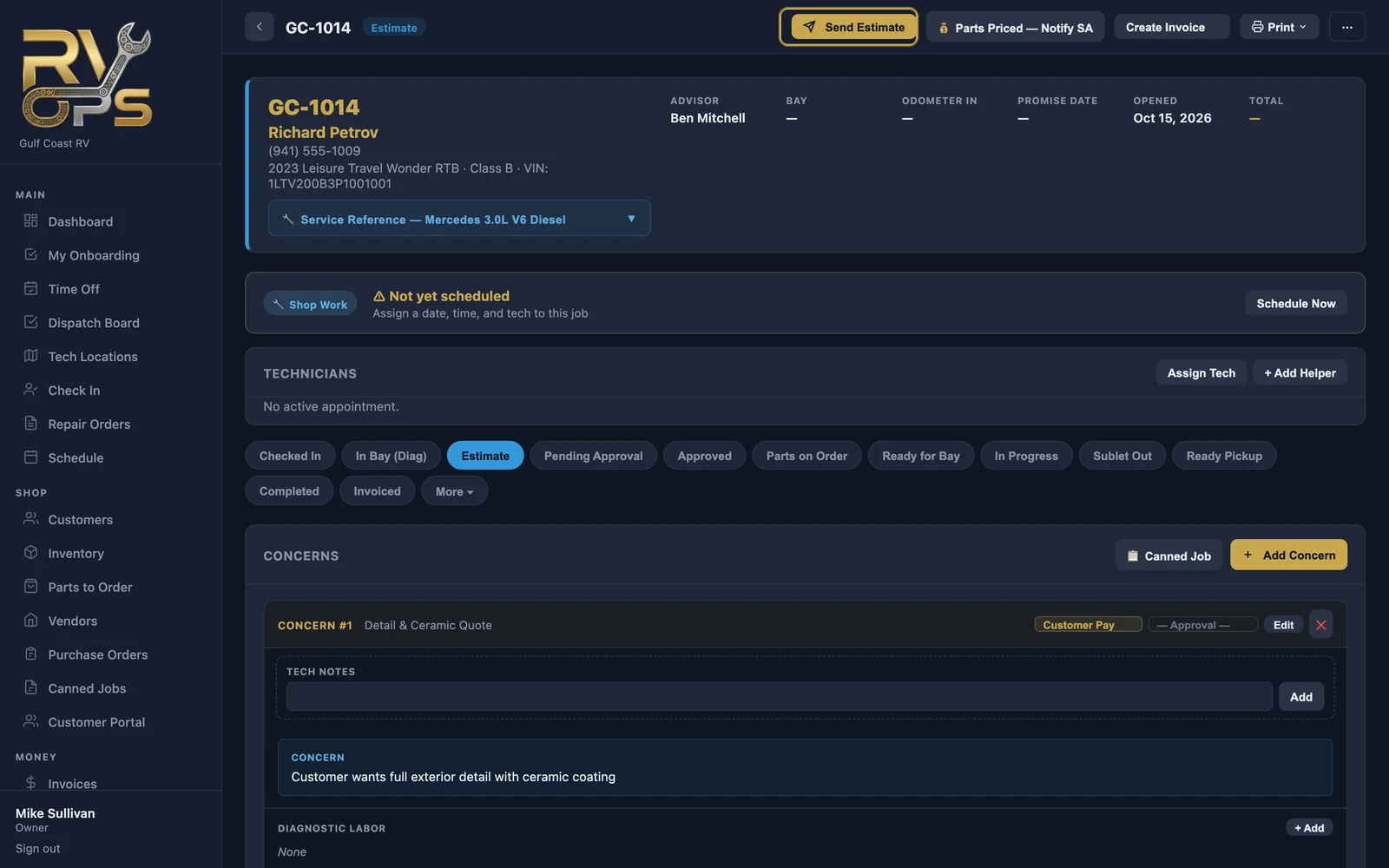
- Waiting on parts prices? Whoever prices parts clicks 💰 Parts Priced — Notify SA at the top of the RO, and the service advisor is notified the estimate is ready to send.
Send it
- Click Send Estimate at the top of the RO.
- Check the customer's email.
- Tick the jobs to include. You don't have to send everything at once — send the rest later.
- Add a personal message if you like, then click Send Estimate.
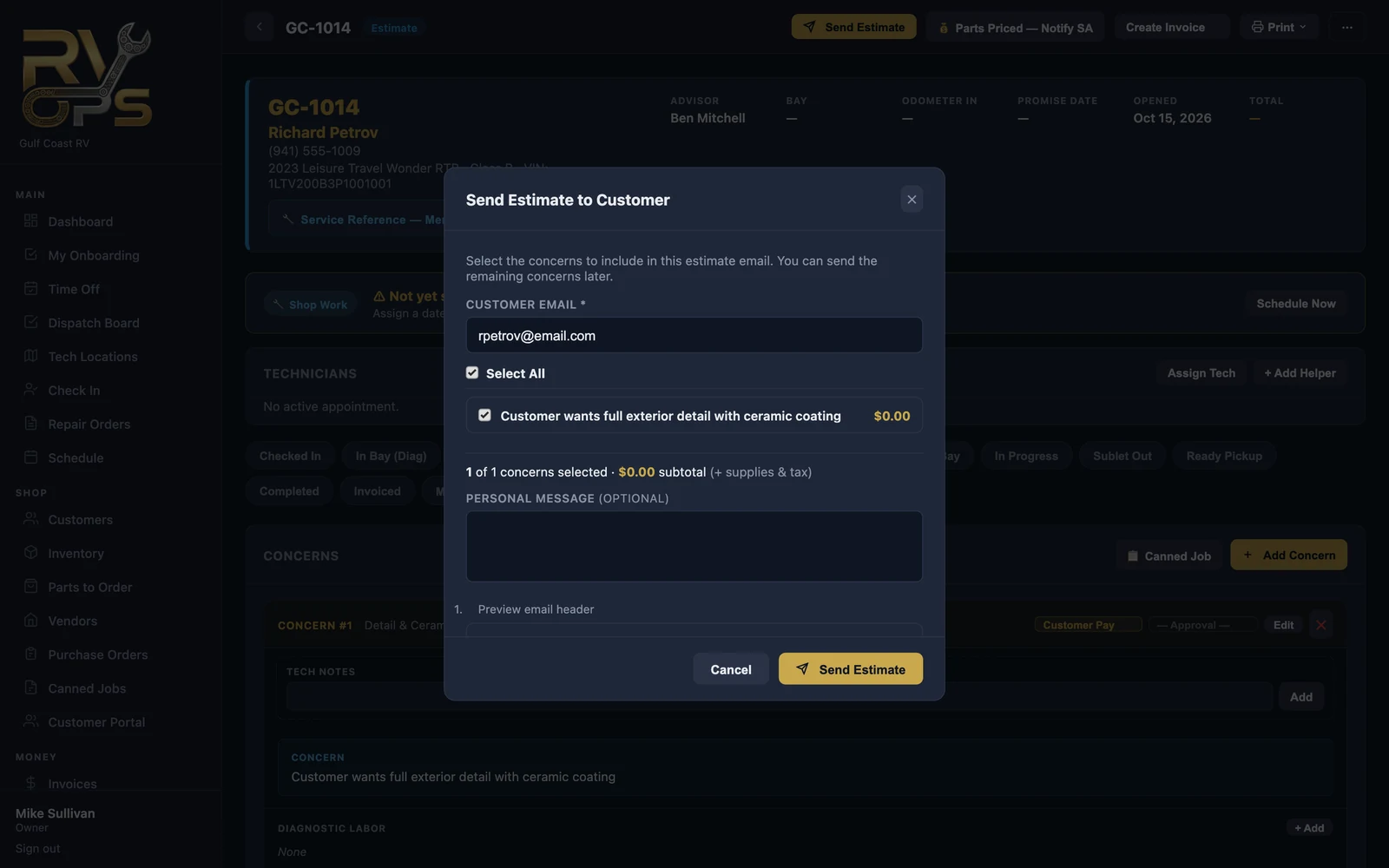
The customer gets an email with a link to the estimate. When it's sent, the RO moves to Pending Approval.
Sending estimates automatically
Under Settings → Notifications, turn on Auto-send estimate when created to email every new estimate as soon as it's created.
Printing instead
For a customer at the counter, use Print → Print Estimate. Your warranty policy and card-fee notice print at the bottom if you've turned them on in Settings → Shop Config.
Still stuck? Send us a message (or email [email protected]) and tell us what you were trying to do — we answer within one business day.