 MarineOps
 Adding Labor
Labor is added to each concern in two groups: Diagnostic Labor (finding the problem) and Repair Labor (fixing it). Keeping them separate lets you invoice diagnosis on its own when a customer declines the repair.
Add labor
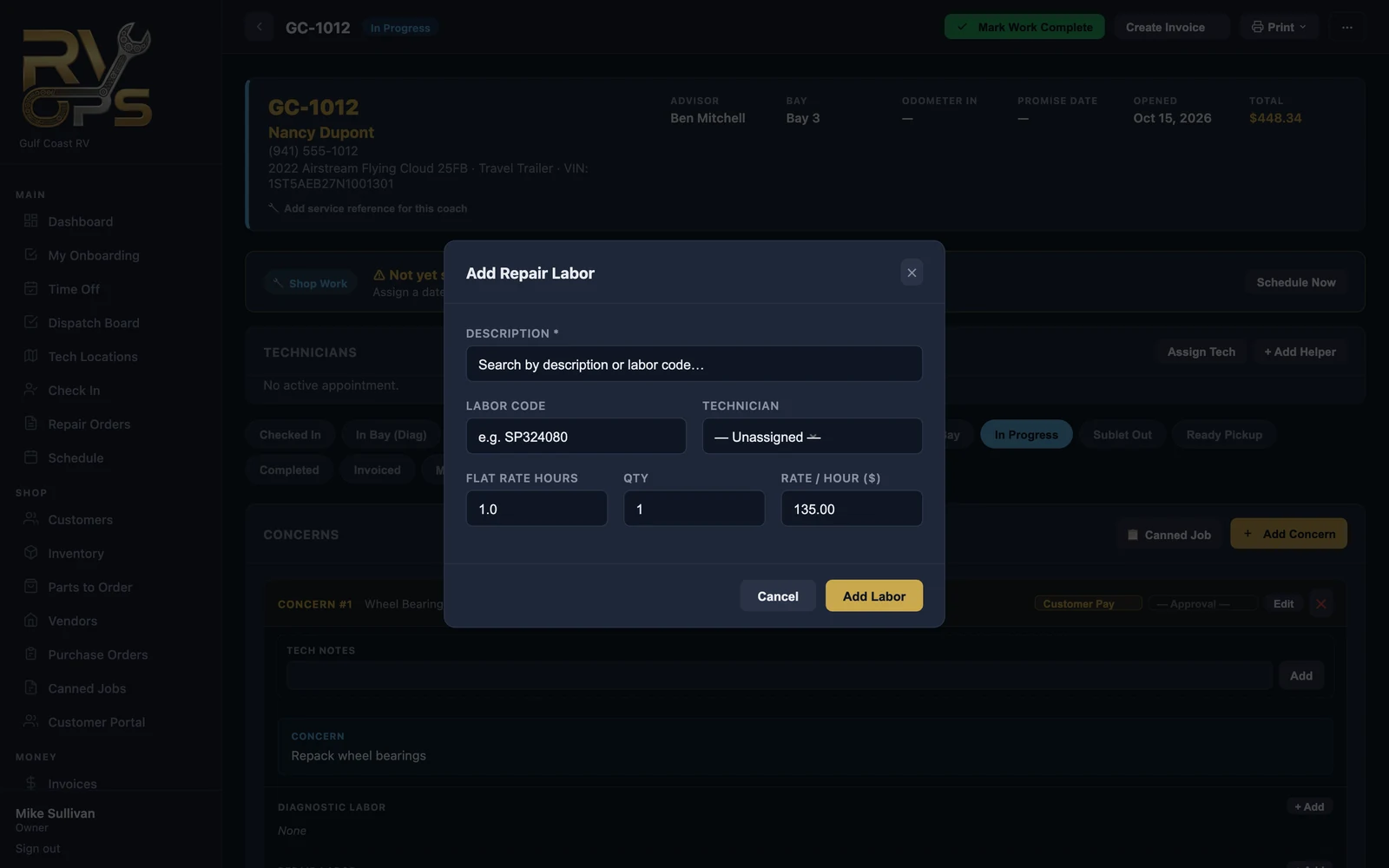
- In the concern, click + Add next to Diagnostic Labor or Repair Labor.
- Type a description the customer will read on the invoice, like Replace awning motor.
- Optional: a labor code for your own reporting.
- Pick the technician doing the work.
- Enter the flat rate hours (book time) and the quantity if the job is done more than once — like two axles.
- The rate per hour fills in from your shop rate, or the tech's own rate if they have one. Change it if needed.
- Click Add Labor.
Flat rate vs. actual time
The customer is billed the flat rate hours you enter. Separately, techs clock in on each labor line (the ▶ Clock In button) so MarineOps knows how long the job really took. The difference is your techs' efficiency, which shows on timesheets and pay reports. Techs paid by the flag hour are paid on the flat rate hours, however long the job took.
Two techs on one job: tech splits
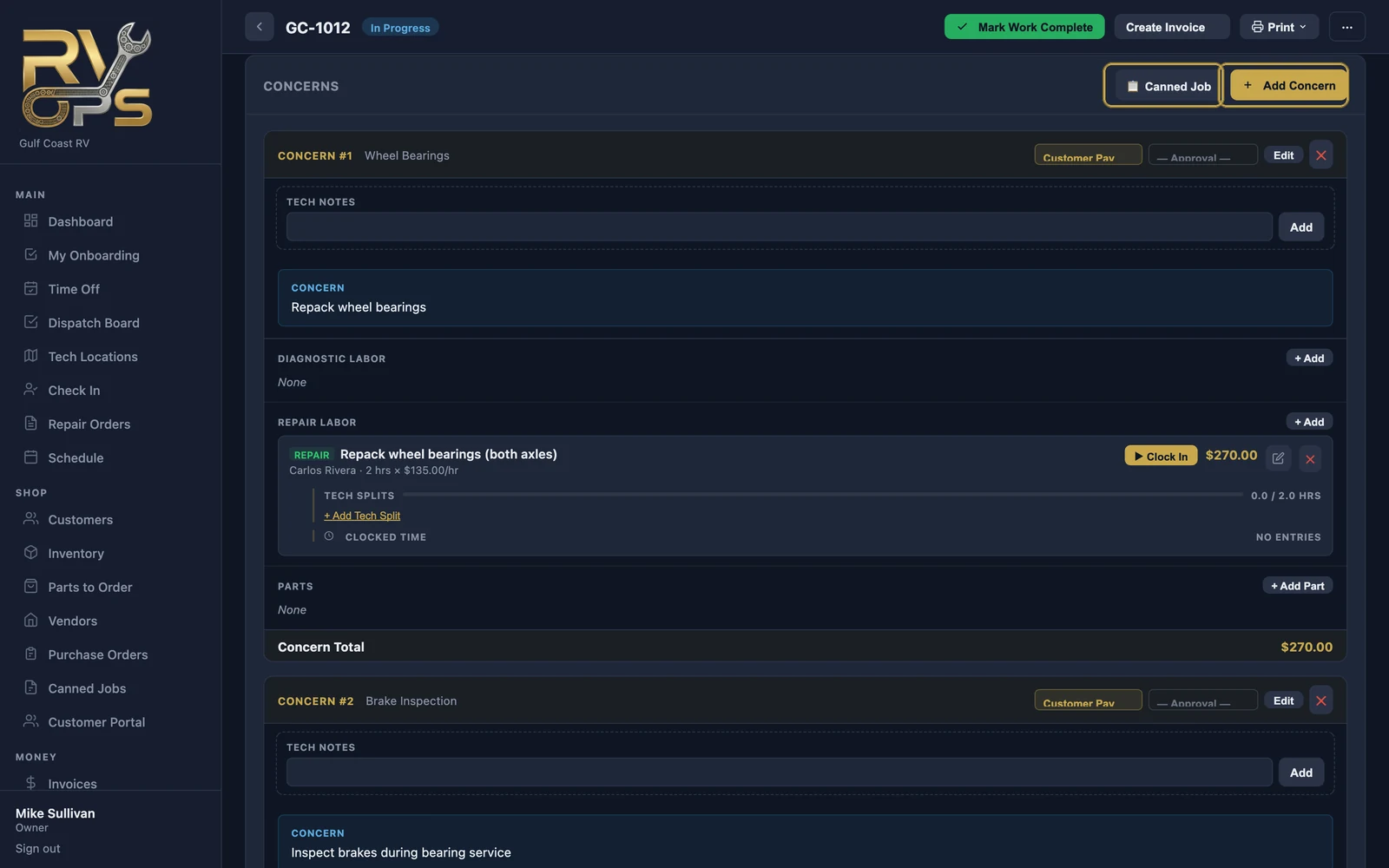
Under a labor line, click + Add Tech Split to divide its hours between techs — for example, 1.5 hours to the lead tech and 0.5 to a helper. Pay reports credit each tech with their share.
Change or remove labor
Use the ✏️ to edit a line or ✕ to remove it. Prices on finished, paid work are protected — see Voids, Refunds & Corrections.
On Pro and up, your own labor guide fills in standard book times as you type the description.