 MarineOps
 First-Day Setup Checklist
Do these steps once, in this order, before writing your first repair order. Everything here is under Settings at the bottom of the left menu, and only the owner (or anyone you give settings access) can change it.
1. Shop information and logo
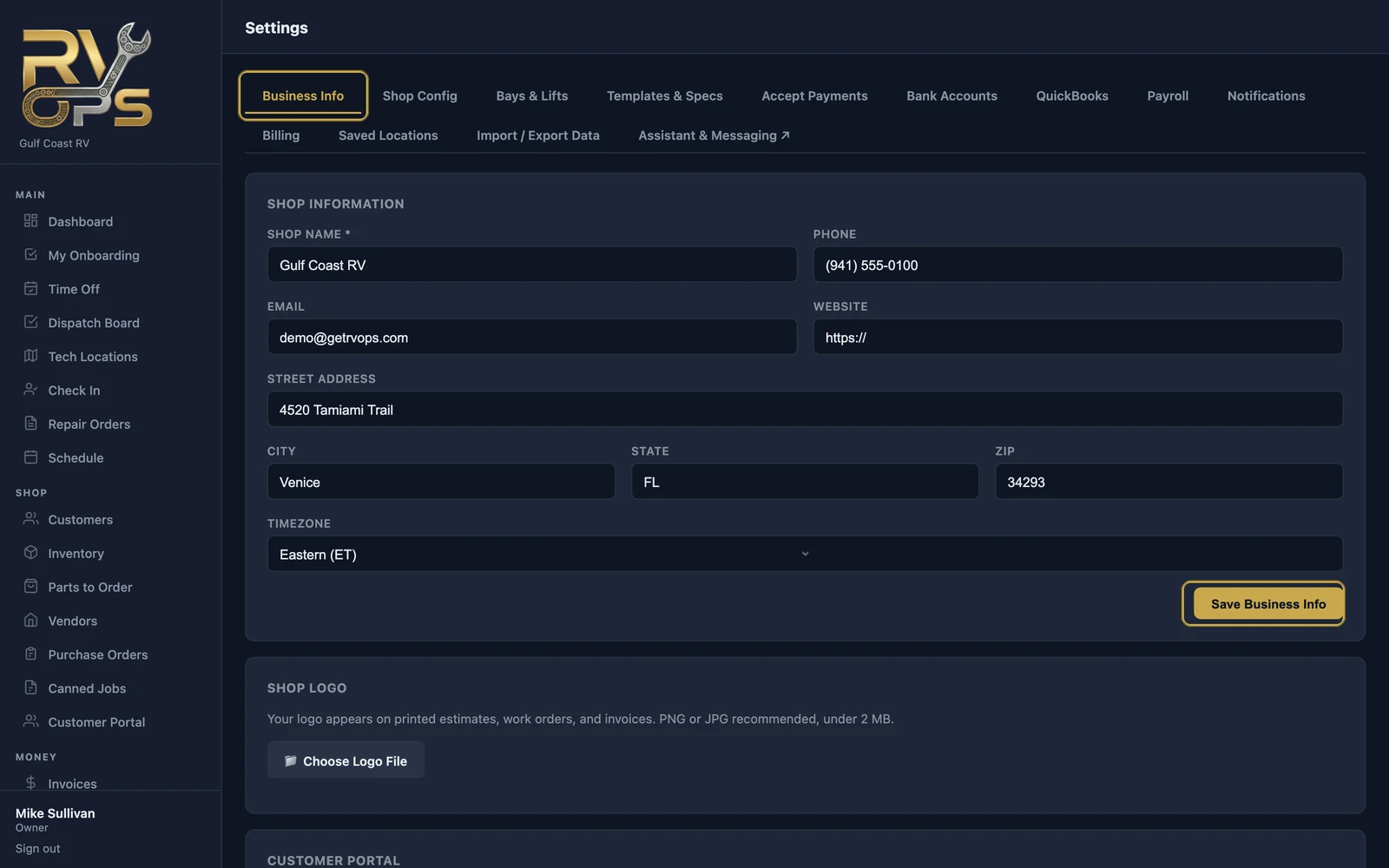
- Open Settings → Business Info.
- Fill in your shop name, phone, email, website and address. These print on every estimate, work order and invoice.
- Pick your time zone. Appointments, time clock punches and reports all use it.
- Click Save Business Info.
- Under Shop Logo, click Choose Logo File and pick a PNG or JPG under 2 MB.
getrvops.com/yourshop. That becomes your shop's own link for customers to check on their boat and pay.2. Labor rate, shop supplies, tax and RO numbers
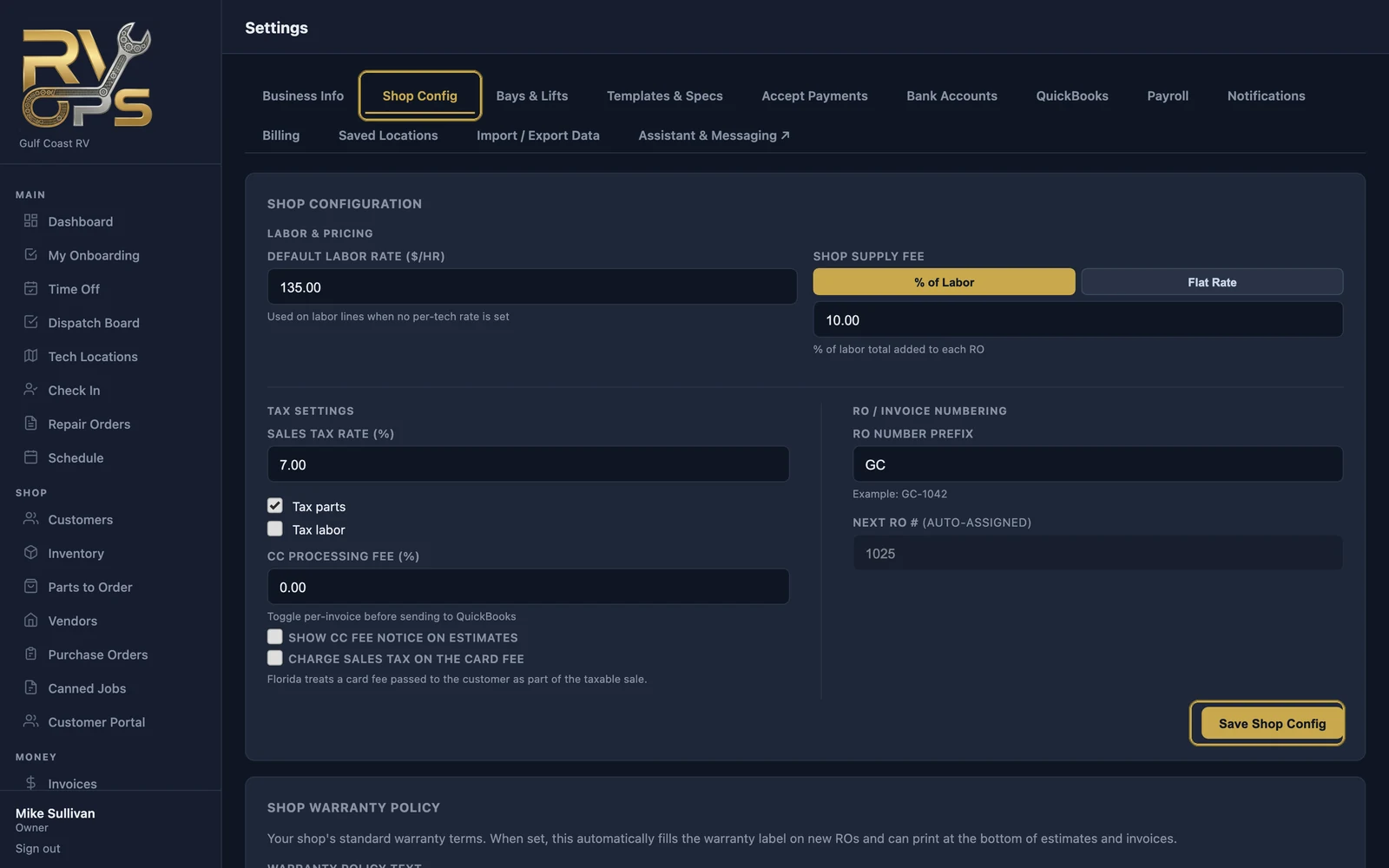
- Open Settings → Shop Config.
- Default Labor Rate — your hourly rate. It's used on every labor line unless a tech has their own rate.
- Shop Supply Fee — choose % of Labor or Flat Rate and enter the amount, or 0 for none.
- Sales Tax Rate — your combined rate, and tick whether you tax parts, labor or both.
- CC Processing Fee — if you pass card fees to customers, enter the percent. Leave at 0 if you don't.
- RO Number Prefix — a short code in front of every RO number, like
GCfor GC-1042. - Click Save Shop Config.
Further down the same tab you can set your warranty policy text (it prints on estimates and invoices), your Zebra label printer, and your road call settings: where techs start from and how you charge a travel fee.
3. Bays and lifts
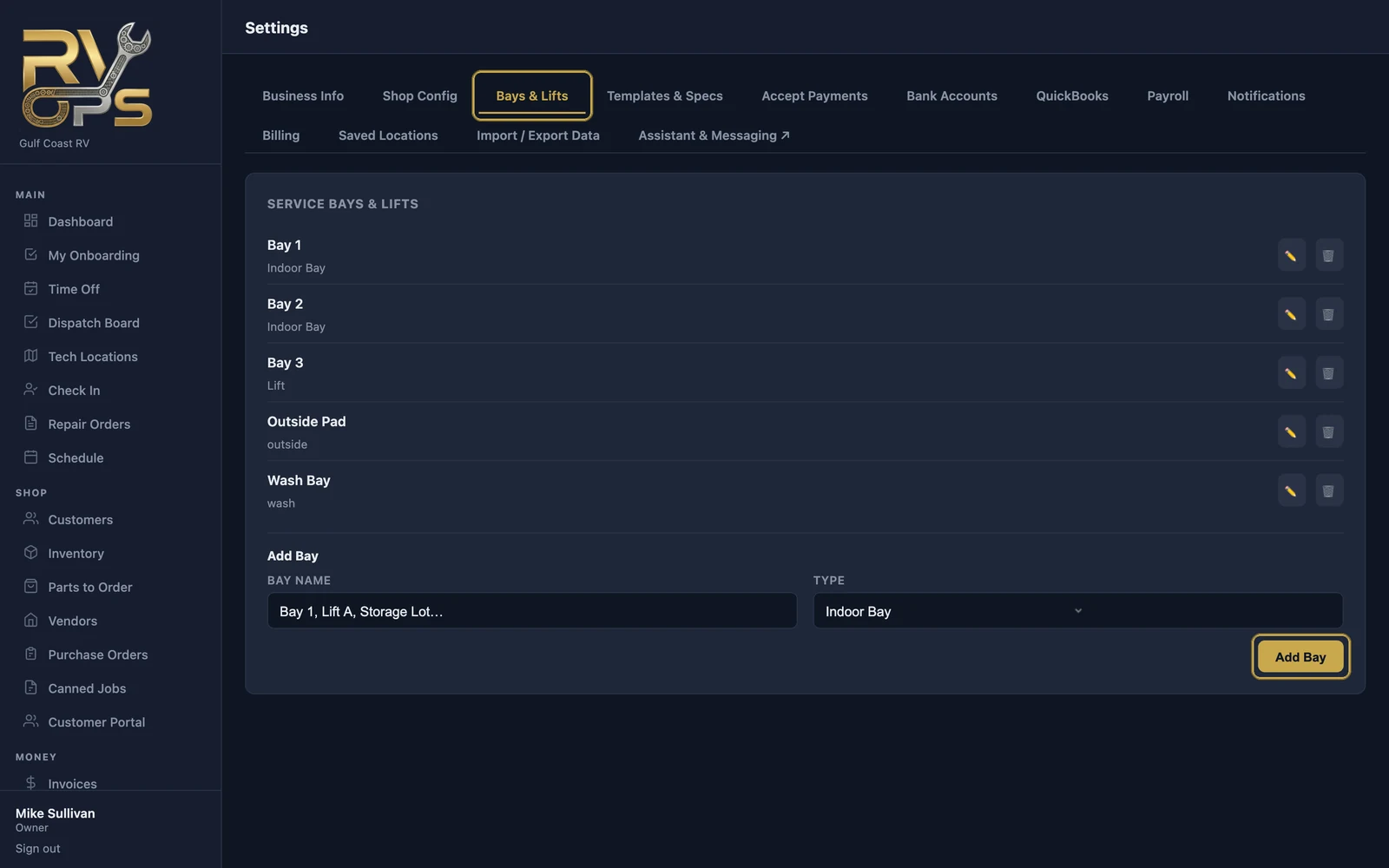
- Open Settings → Bays & Lifts.
- Type a bay name, pick a type (indoor bay, outdoor bay, lift or storage lot) and click Add Bay. Repeat for each.
4. Your team
Add a login for everyone who will use MarineOps — techs, service writers, managers, even your bookkeeper. See Adding Staff & Permissions.
5. Card payments
Connect Square or Stripe so you can take cards at the counter, on road calls and through online pay links. See Connecting Card Payments.
6. Bring in your customers and parts
If you have customers, boats or a parts list in another system or a spreadsheet, import them now so your first repair orders don't start from scratch. See Importing Your Customers, boats & Parts.