 MarineOps
 Your Parts List & Price Book
Your parts list — MarineOps calls it Inventory — is your price book. Save each part once with its number, cost, sell price and shelf location, and from then on it's a few keystrokes to put it on any repair order or estimate. It's included on every plan.
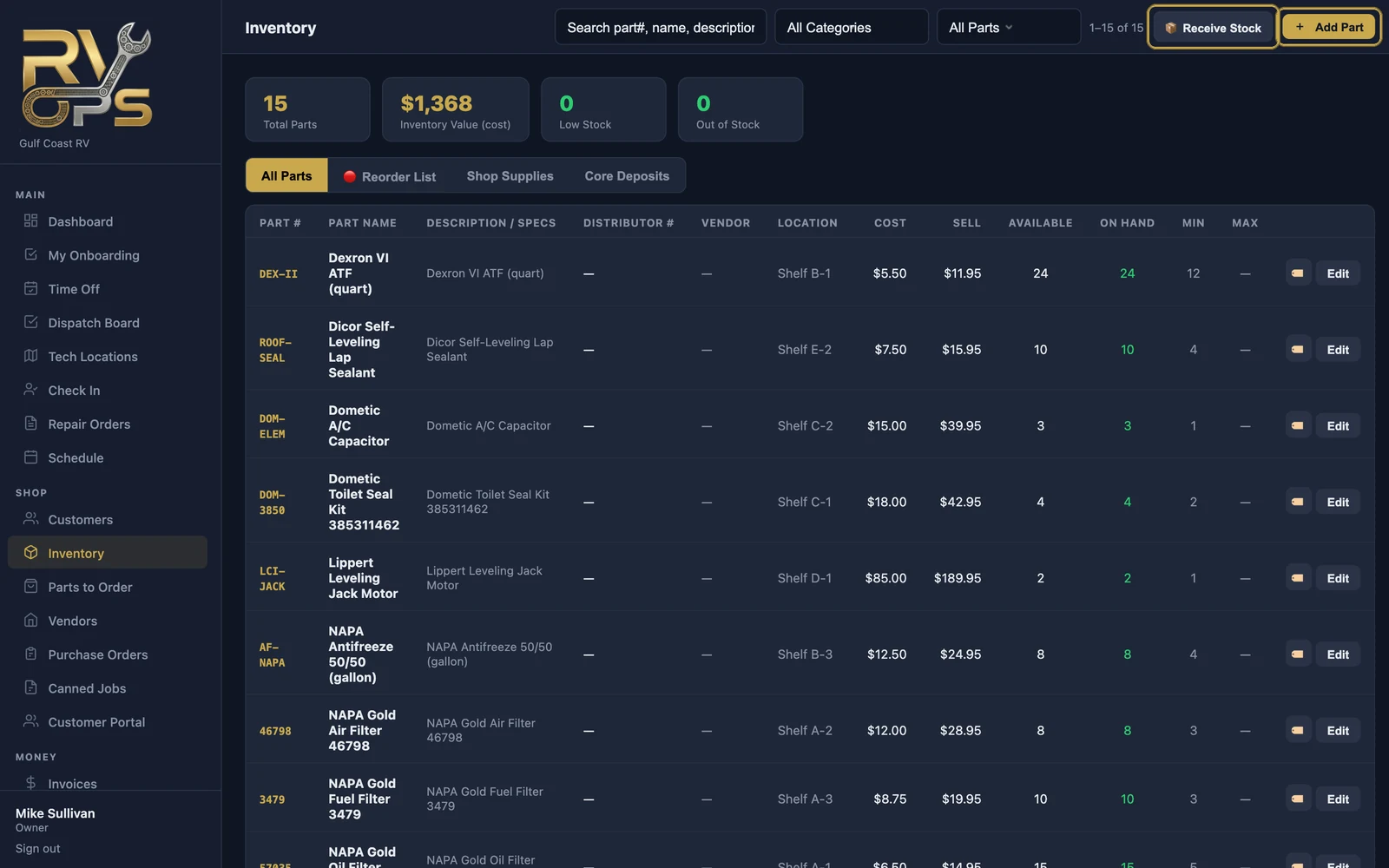
Add a part
- Open Inventory in the left menu and click Add Part.
- Fill in the part name (what prints on the invoice) and, if you have them, the part number, distributor number, category and UPC. Scan or type a UPC and MarineOps fills in the product details when it can.
- Enter the cost and either the sell price or a markup %.
- Optional: the vendor, shelf location, quantity on hand and min / max stock.
- Untick Normally stocked for special-order parts you don't keep on the shelf. Tick Shop Supply for things techs use up but customers aren't billed for line by line (see Shop Supplies & Cores).
- Save.
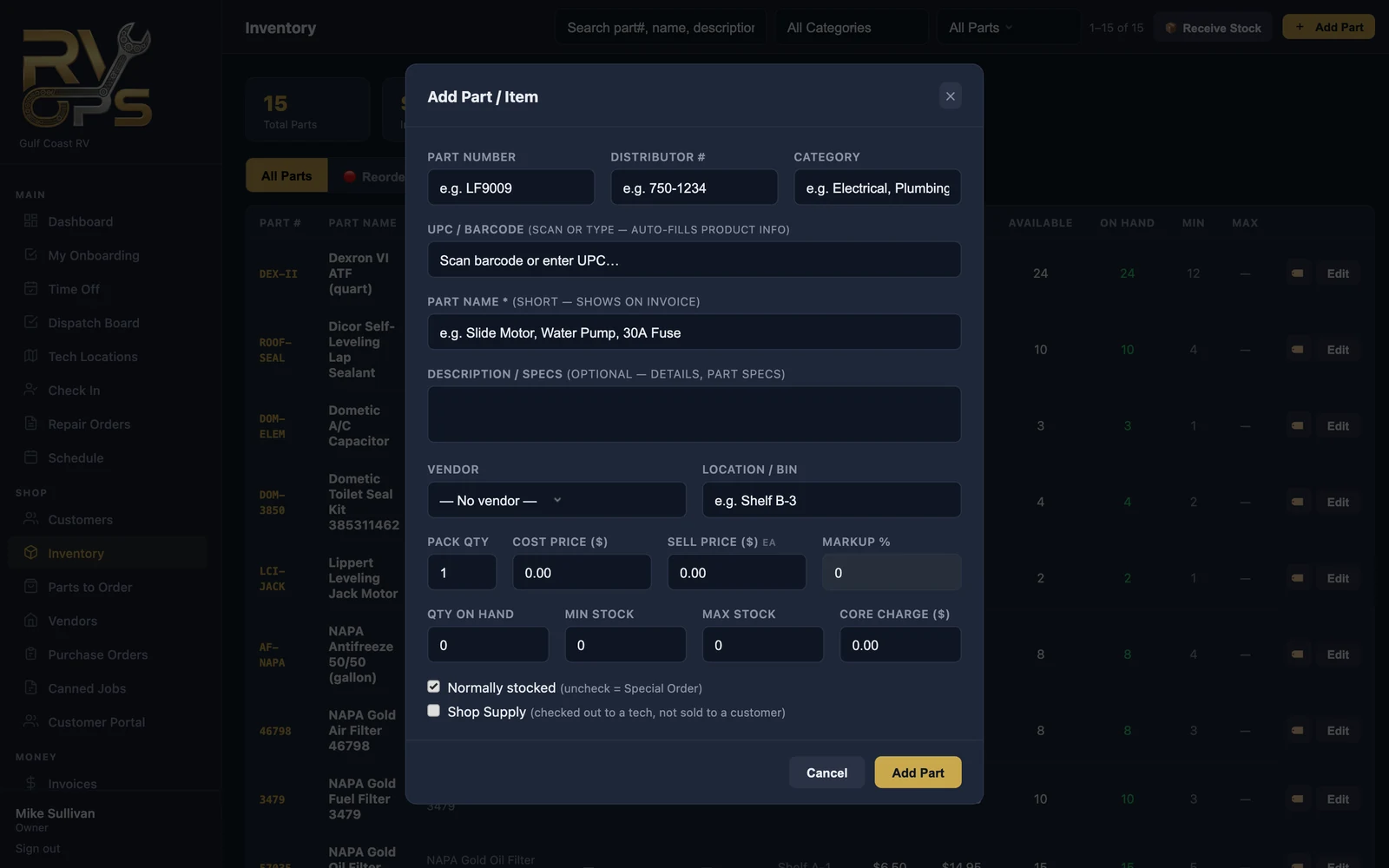
Finding parts
Search by part number, name or UPC; filter by category, or show only stocked or special-order parts. The tiles across the top show your total parts, what your inventory is worth at cost, and how many are low or out of stock.
How stock counts stay right
- Parts on a repair order are reserved, so "Available" is what's really free to sell.
- When the invoice is paid, the parts come out of stock.
- Received stock adds to your count (see below).
- Every change is logged, so you can see why a count moved.
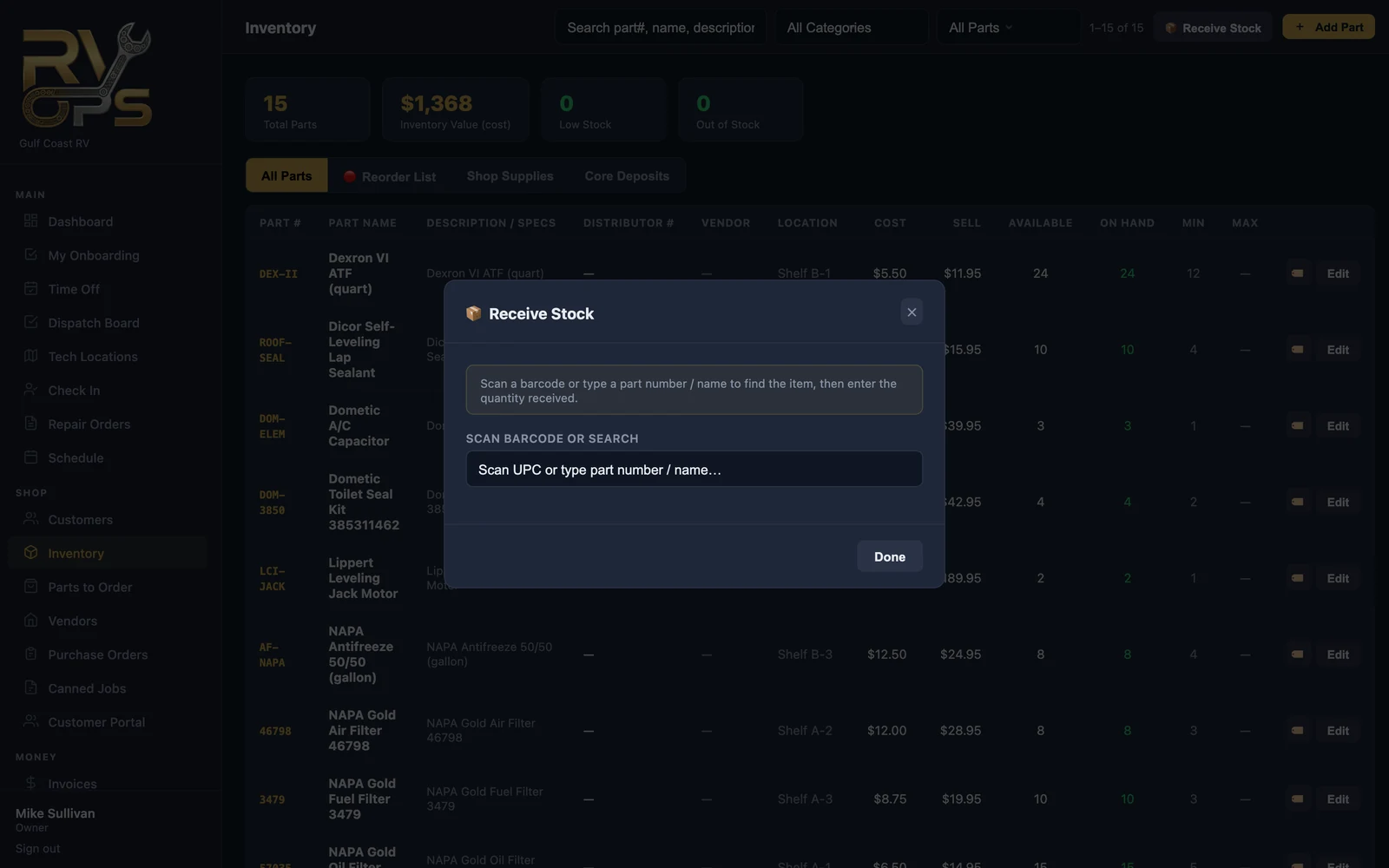
Receiving stock
Click 📦 Receive Stock, scan a barcode or search for the part, and enter how many came in. On Pro and up, parts ordered on a purchase order are received against that PO instead, so the repair orders waiting on them update too.
Labels
Click 🏷️ next to any part to print a shelf or bin label on your Zebra printer.