 MarineOps
 Maintenance Records & CampSavvy
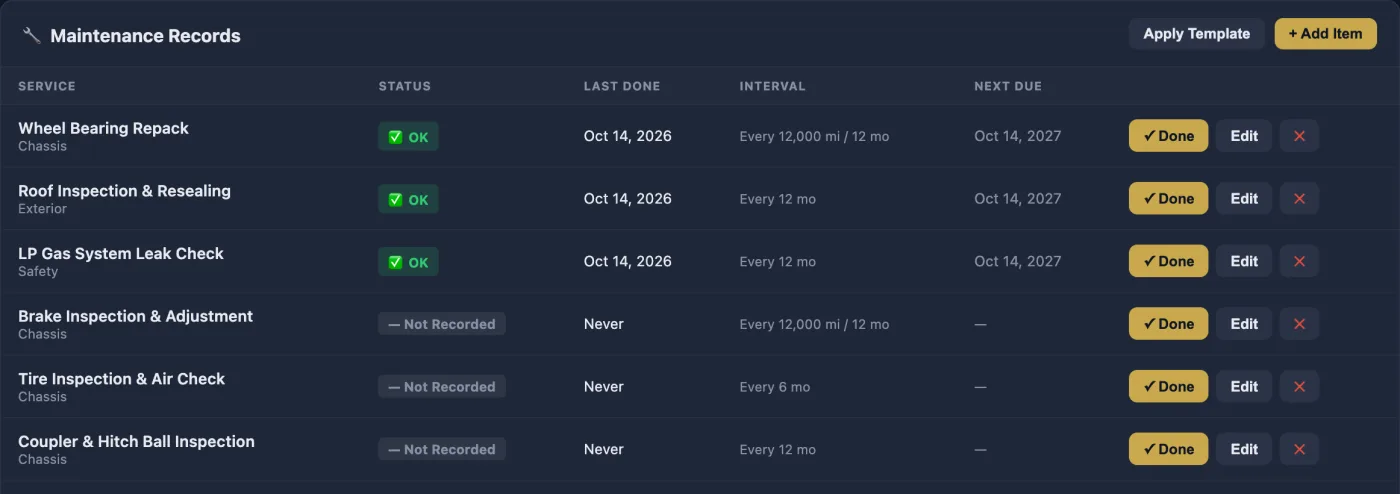
Every boat in MarineOps has a maintenance record: a list of services (oil, roof, bearings, water heater…), when each was last done, and when it's due next. MarineOps keeps it up to date from the work you finish on repair orders, and if the owner uses the CampSavvy app, the same record shows up on their phone.
Here's the whole flow in one place.
- The boat gets a maintenance list — from a template for its boat type.
- Your canned jobs say which items they cover — an oil change covers "Engine Oil & Filter."
- You finish the RO — every item its canned jobs cover is marked done, with the RO's date and engine hours.
- The customer sees it — in their CampSavvy app, if they've connected it to your shop.
1. Every boat gets a maintenance list
When you save a boat with a boat type (Class A, travel trailer, fifth wheel…), MarineOps adds the matching template's items to it automatically. For motorhome types with gas and diesel templates, the boat's fuel type picks the right one. You can also click Apply Template on the boat, or + Add Item for a single service.
A boat saved as type Other gets no template — set a real type with Edit Vehicle, or apply one by hand.
The templates themselves — the items, intervals and boat types — are under Settings → Templates & Specs → Maint. Templates (Elite plan).
2. Canned jobs mark items done
Open a canned job and scroll to Marks Maintenance Done at the bottom. Check every maintenance item the job covers, then Save Job.
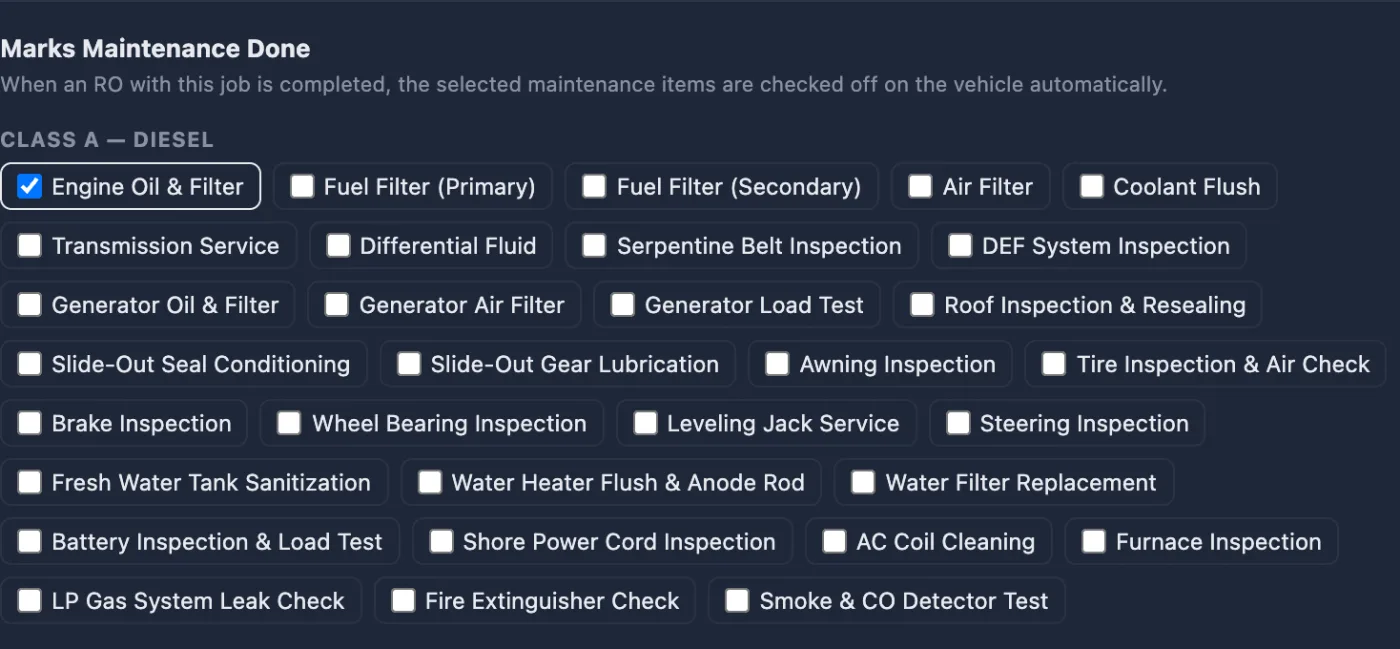
- Name your canned jobs anything you like — the checkboxes are what count.
- One job can cover several items (a fuel filter job can check both Primary and Secondary).
3. Finishing the RO updates the record
When an RO is Completed — the status change, or a tech tapping work complete — or closes to Invoiced, each item its canned jobs cover is marked done on that boat:
- Last done is the day the work was finished, and the engine hours is the RO's out engine hours (or in engine hours if there's no out reading).
- It happens again when the invoice is paid, but it won't change anything already marked from that RO — so a date you corrected by hand stays.
- An older RO never replaces a newer service already on the record.
You can always mark an item yourself: click ✓ Done on the boat's maintenance record and enter the date, engine hours and generator hours.
Naming items your way: "Counts as"
Every maintenance item has a Counts as setting — the standard service it is, like "Engine oil & filter," "Roof & sealant" or "Fuel filters." It's what lets you call an item whatever your shop calls it ("Oil Service," "Diesel Lube") and still have everything line up.

- The built-in items are already set. You'll only touch it when you add your own items.
- When you add an item, leave Counts as on Work it out from the name, or pick one. Choose Shop-only for work that isn't a standard service.
- Rename an item any time: it keeps its Counts as, and the canned jobs linked to it follow the new name.
- If a boat's item has a different name than the one a canned job is linked to, MarineOps matches them by Counts as. An exact name match always wins, so "Fuel Filter (Primary)" never marks the secondary filter.
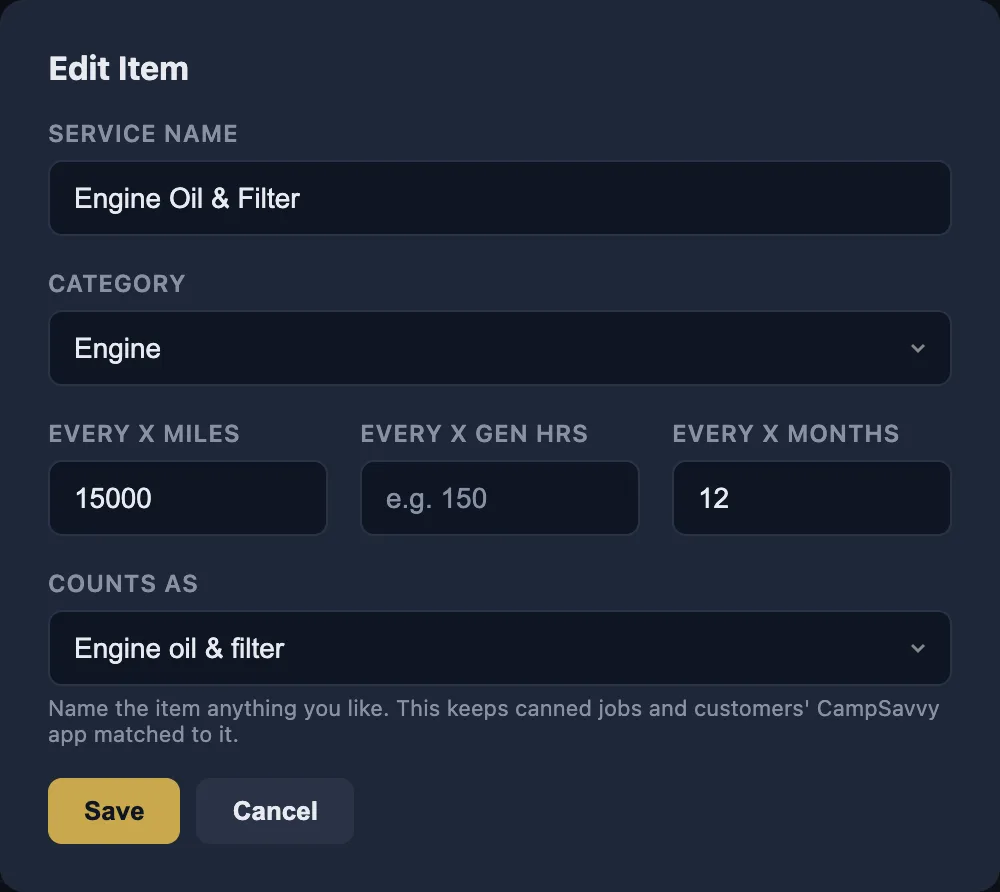
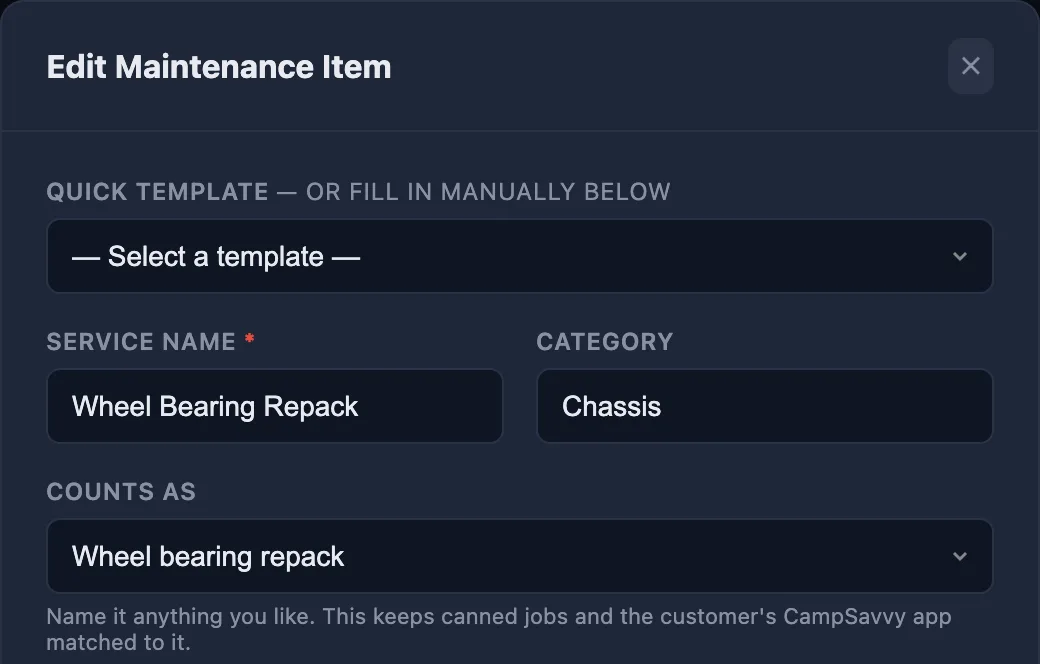
The same setting is on each boat's items (Edit on the maintenance record) and on template items (Edit in Maint. Templates).
4. Your customers see it in CampSavvy
CampSavvy is a boat owner app (leveler, checklists, maintenance, trips). Customers who use it can connect it to your shop and see their boats, the finished work, what you recommend, and their maintenance record — never prices, payments or your notes. Their CampSavvy schedule updates itself from your record, matched by Counts as.
Turn it on under Settings → Business Info → CampSavvy App:

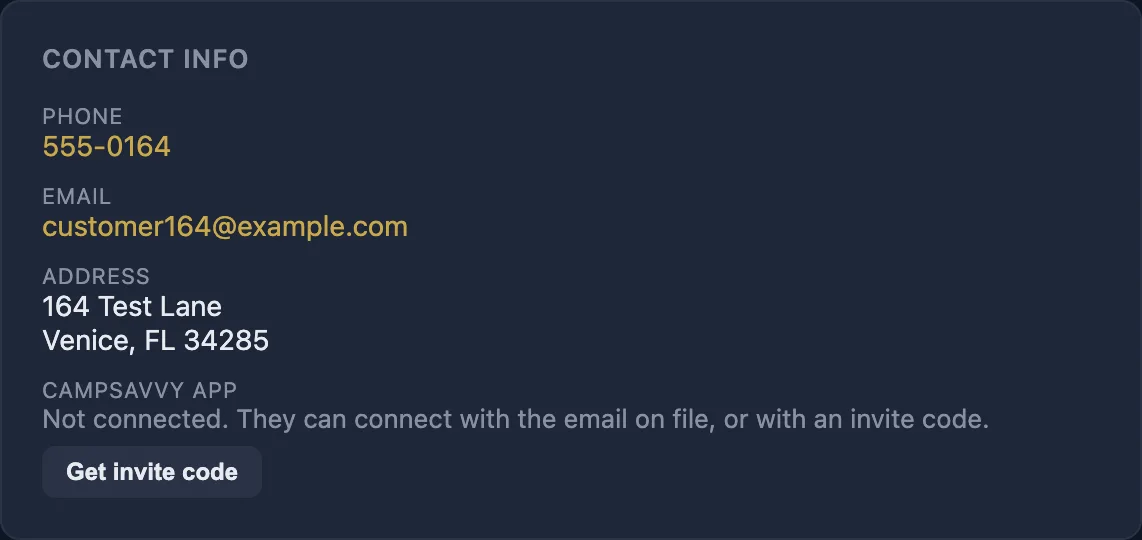
A customer connects in their app with the email you have on file for them — MarineOps emails them a code (only if they're your customer). No email on file? Open the customer and click Get invite code in the CampSavvy App line; the code works once, for 60 days. The same line shows whether they're connected, and lets you disconnect them.
What they see:
- Visits — each Completed or Invoiced RO: the date, engine hours and the work done (job titles and correction notes). Declined jobs and open ROs aren't shown.
- Recommended — work you recommended on those ROs.
- Maintenance — every item with a last-done date. If the owner logged something newer themselves, theirs stays.
Quick checks
- An item didn't update after an RO. Was the job added from a canned job, and is that item checked under Marks Maintenance Done? Is the RO Completed or Invoiced? Does the boat have that item (or one that counts as the same)?
- Every item says Never. The boat's past ROs were written without linked canned jobs. Mark the last-known dates with ✓ Done once; from then on they fill in.
- A customer's app shows a service twice. One of your items is set to Shop-only or the wrong Counts as, so their app added it as its own item. Fix the Counts as and their app matches it from then on; they can remove the extra item in the app.
Related: Canned Jobs & Smart Recipes · Service Reminders · Customers & boats