 MarineOps
 Help Center › Parts & Inventory
Parts to Order
One list of every part your ROs are waiting on.
Included in: Pro plan and up
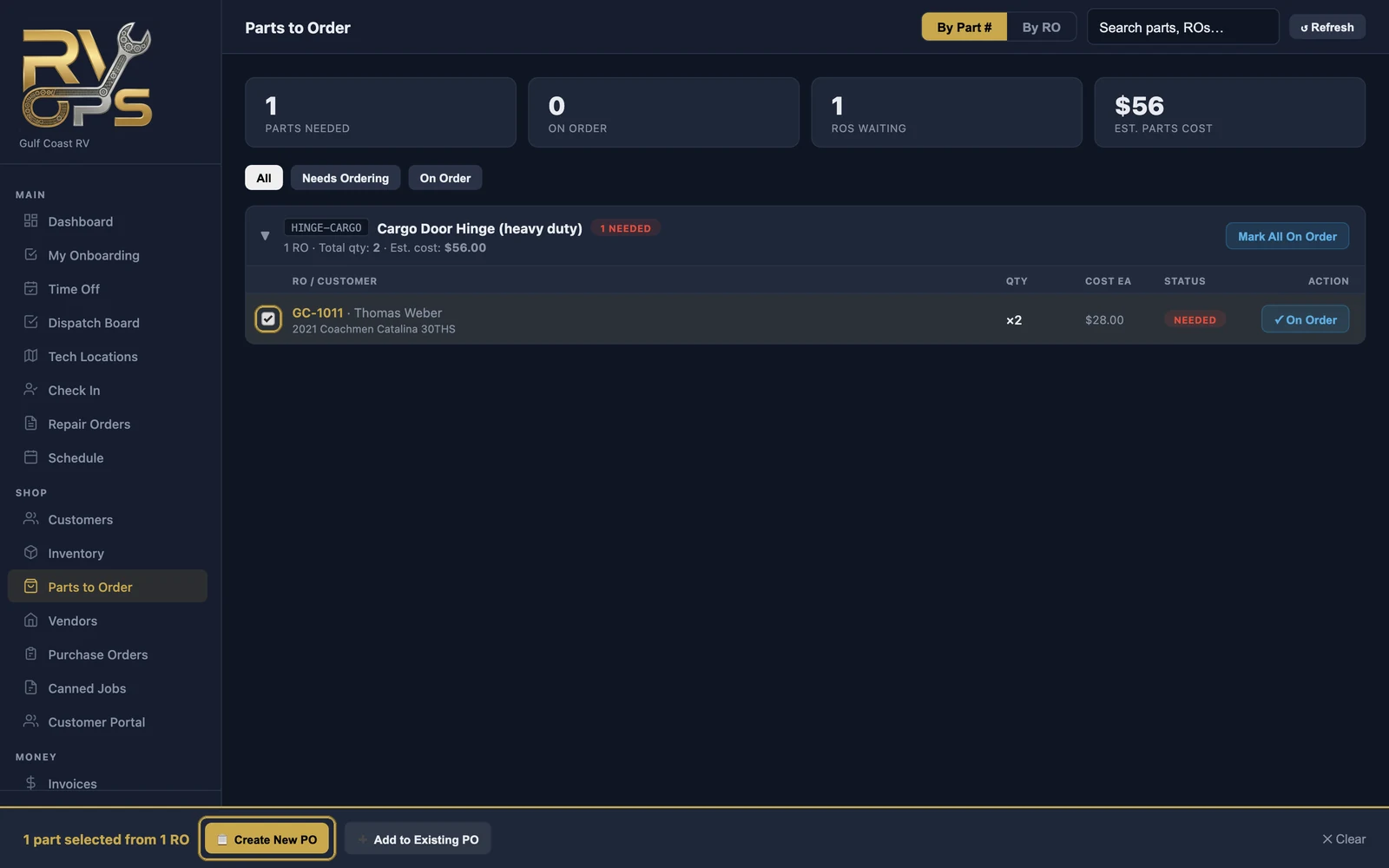
Parts to Order is one list of every part your repair orders are waiting on, across the whole shop. Instead of digging through ROs, whoever orders parts works from this list — grouped by part number, so you can order three of the same seal for three customers in one go.
How parts get on the list
A part lands here when it's added to a repair order as needs ordered (not on the shelf) and its job has been approved by the customer — or by the warranty company for warranty work. That way you never order parts for work that might be declined.
An RO can show "1 part needs to be ordered" while the part isn't on this list yet. That just means the customer hasn't approved that job.
Order the parts
- Tick the parts you're ordering from one vendor.
- Click 📋 Create New PO, pick the vendor and add a note or reference number — or click ➕ Add to Existing PO to add them to an open order.
- The parts move to On Order, and each repair order shows they're on the way.
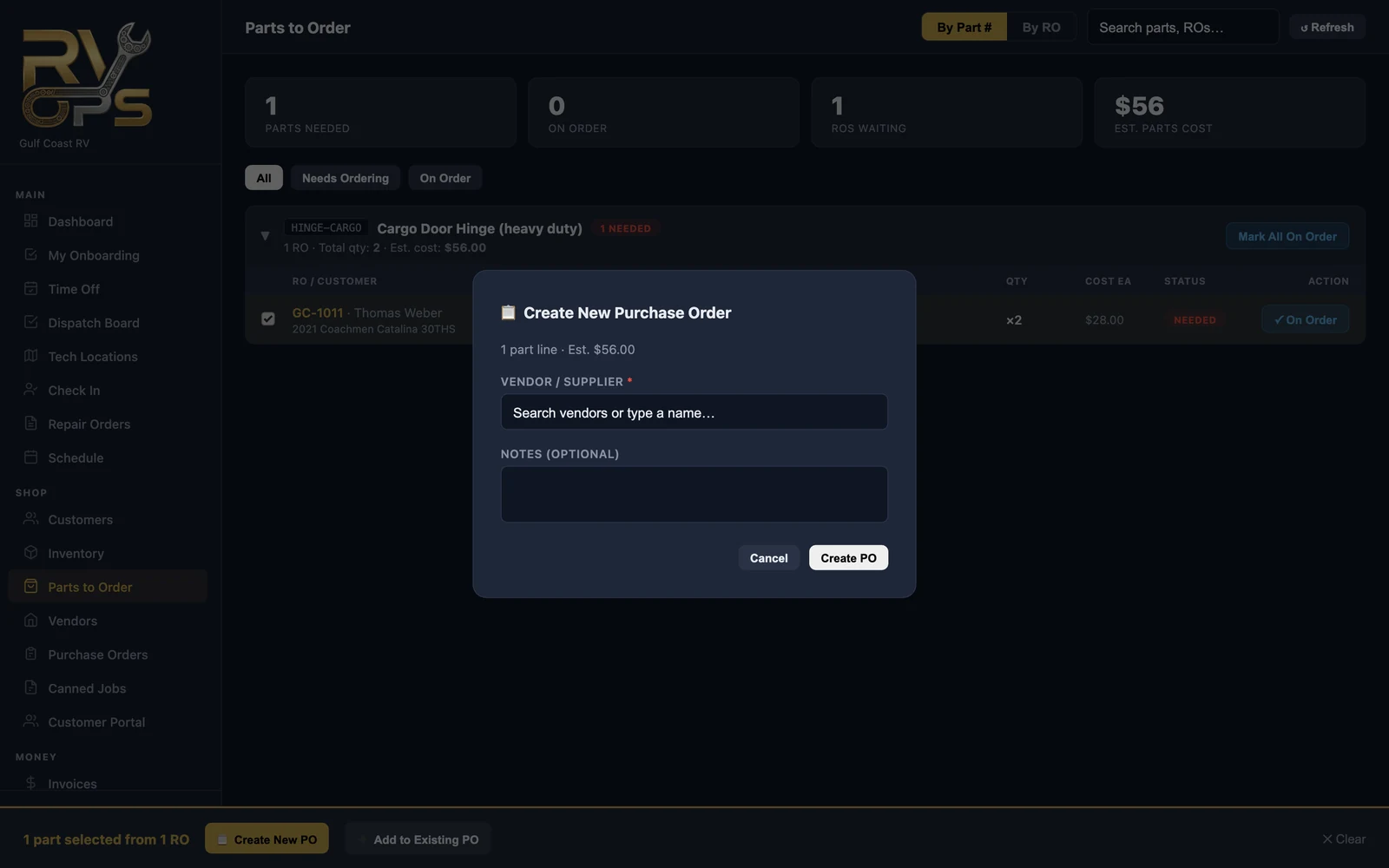
Ordering by phone without a PO? Click ✓ On Order on a line, or Mark All On Order for a part number.
Views and filters
- By Part # — group the same part across ROs (best for ordering).
- By RO — see everything one customer's boat is waiting on.
- Needs Ordering / On Order — filter to what's left to do.
When the parts arrive, receive them on the purchase order.
Still stuck? Send us a message (or email [email protected]) and tell us what you were trying to do — we answer within one business day.