 MarineOps
 Help Center › Getting Started
Importing Your Customers, boats & Parts
Bring your existing data in from a spreadsheet.
Included in: Every plan
On this pageBefore you start: get a CSV fileImport step by stepCustomers and boatsIt's safe to run twiceComing from QuickBooks?
If you're coming from another system — or from a spreadsheet — you don't have to type your customers in by hand. MarineOps imports customers and their boats, your parts list, and your labor guide from a CSV file, the plain spreadsheet format every program can save.
Before you start: get a CSV file
- From your old shop software: look for Export, Reports → Customer List or similar, and save it as CSV.
- From Excel: File → Save As → choose CSV (Comma delimited).
- From Google Sheets: File → Download → Comma-separated values (.csv).
Not sure how your file should look? On the import screen, click Download a blank template for the type you picked, fill it in, and import that.
Import step by step
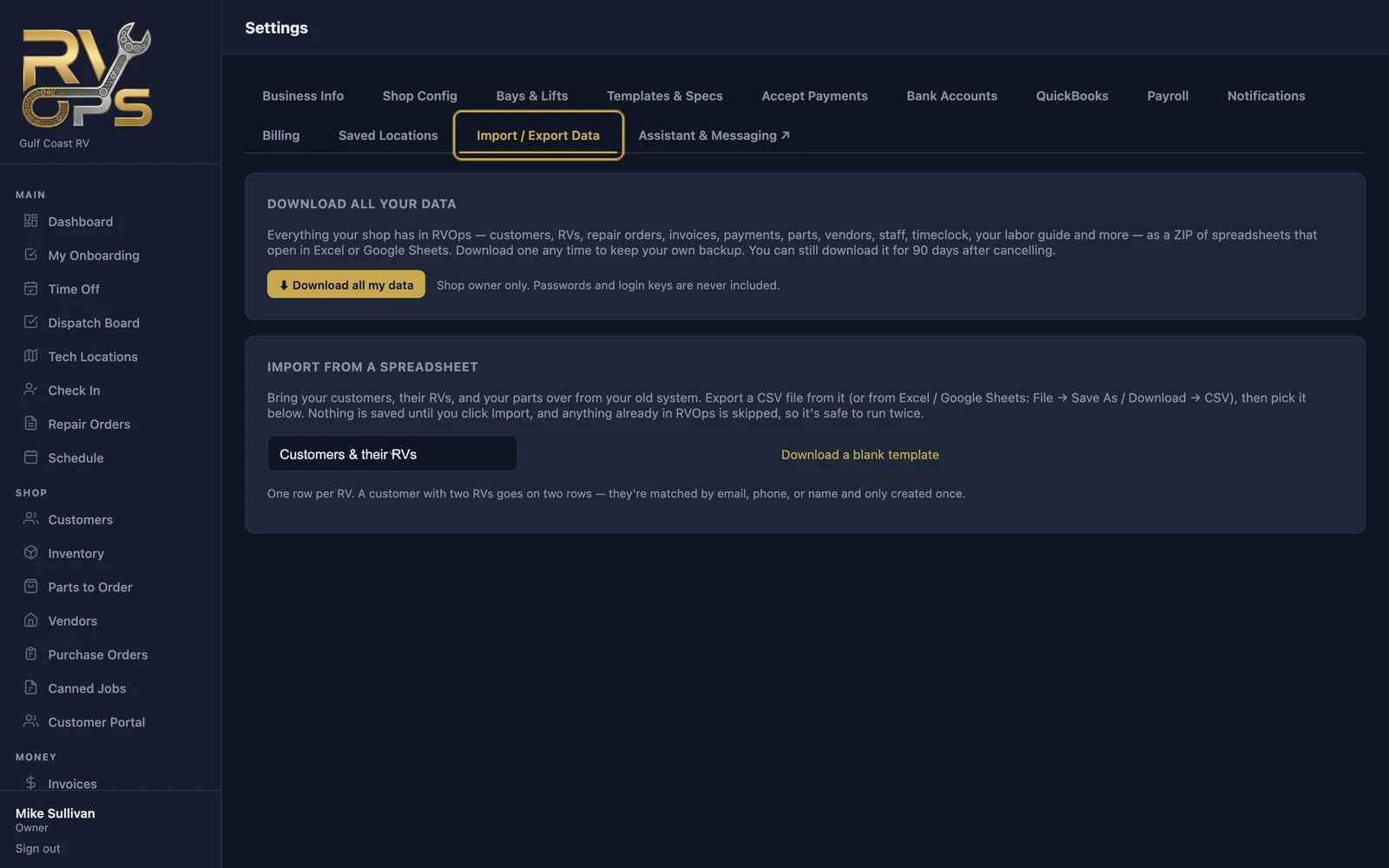
- Open Settings → Import / Export Data.
- Under Import From a Spreadsheet, pick what you're importing: Customers & their boats, Parts / inventory or Labor guide (book times).
- Choose your CSV file.
- MarineOps reads the file and shows every column it found. Match each of your columns to the MarineOps field it belongs to — most are matched for you already. Leave anything you don't need set to "skip".
- Click Import. You'll see how many records were added and how many were skipped.
Customers and boats
Put one boat per row. A customer who owns two boats goes on two rows — MarineOps matches them by email, phone or name and creates the customer only once, with both boats under them.
It's safe to run twice
Nothing is saved until you click Import, and anything already in MarineOps is skipped. If an import goes sideways, fix the spreadsheet and run it again without creating duplicates.
Coming from QuickBooks?
On the Pro plan and up, you can pull customers and parts straight from QuickBooks Online instead — see QuickBooks Online.
Need help moving a large or unusual file? Email it to [email protected] and we'll take a look.
Still stuck? Send us a message (or email [email protected]) and tell us what you were trying to do — we answer within one business day.