 MarineOps
 Help Center › Repair Orders
Printing & Emailing
Work orders, estimates and key tags.
Included in: Every plan
Everything on a repair order can be printed on letter paper or sent as a PDF, with your logo, shop details and warranty policy.
The Print menu
Click Print at the top right of the RO:
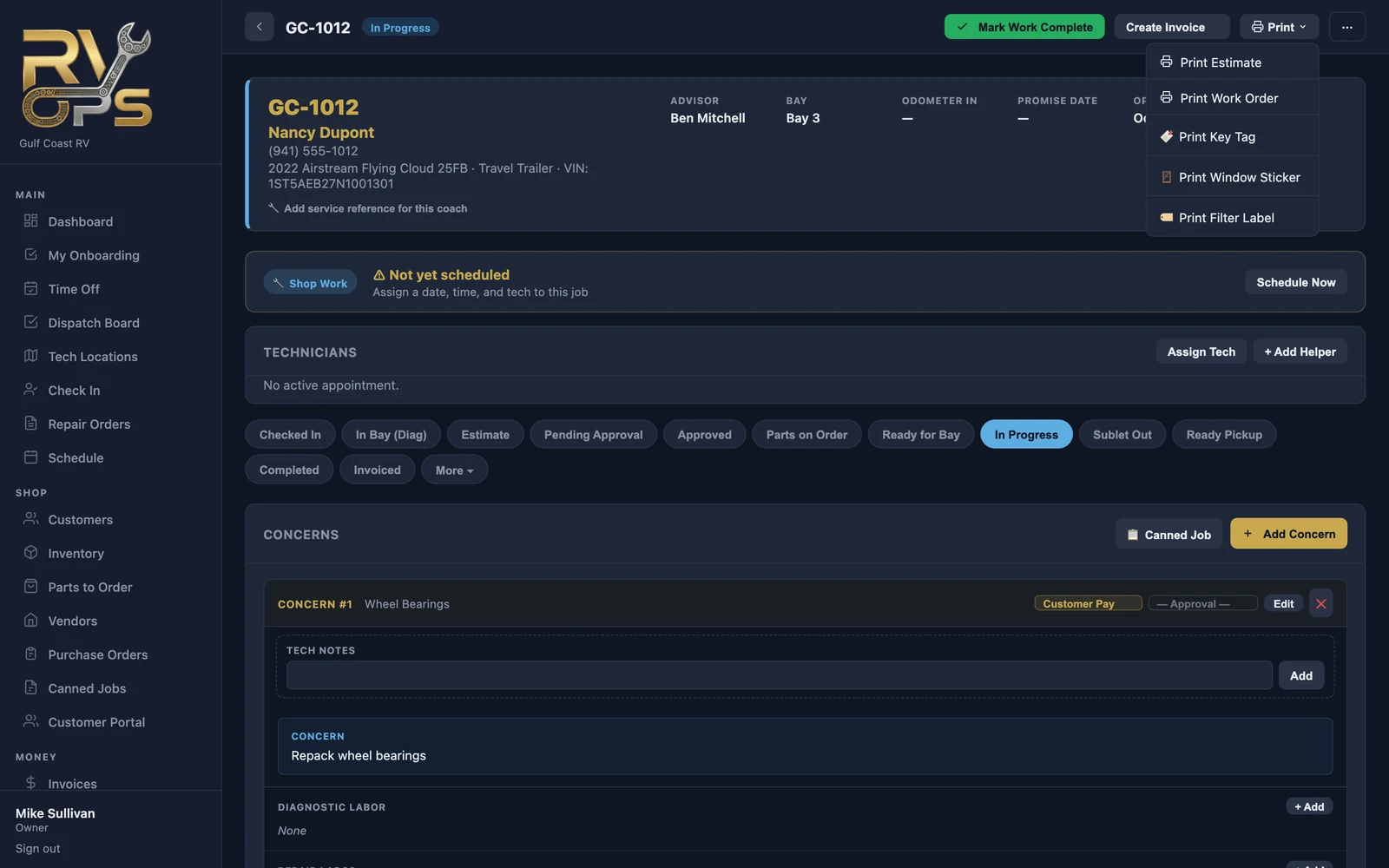
| Choose | For |
|---|---|
| Print Estimate | The customer's copy of the proposed work and prices |
| Print Work Order | The shop copy for the tech — jobs and parts without prices |
| Print Key Tag | A tag for the keys with the RO number and customer (needs a Zebra printer — see Key Tags & Zebra Printers) |
| Print Window Sticker | A label for the windshield so the boat is easy to spot on the lot (Zebra printer) |
| Print Filter Label | Small labels for filters you install, with your shop name, phone, the date and the RO number (Zebra printer) |
The estimate and work order open in a new tab — use your browser's print, or Save as PDF.
Email an estimate
Send the estimate straight to the customer instead of printing it. They get a link to view and approve it on their phone — see Sending Estimates.
Invoices
Invoices have their own print, PDF, email and text options — see Invoicing a Repair Order.
Your warranty policy can print at the bottom of estimates and invoices. Set the text under Settings → Shop Config → Shop Warranty Policy.
Still stuck? Send us a message (or email [email protected]) and tell us what you were trying to do — we answer within one business day.