 MarineOps
 Help Center › Parts & Inventory
Purchase Orders & Receiving
Order from vendors and receive parts against ROs.
Included in: Pro plan and up
A purchase order (PO) is your record of what you ordered from a vendor, what it should cost, and what's actually arrived. Receiving parts on the PO updates your stock and every repair order waiting on those parts, automatically.
Create a PO
The easiest way is from Parts to Order: tick parts and click 📋 Create New PO. To order stock for the shelf instead:
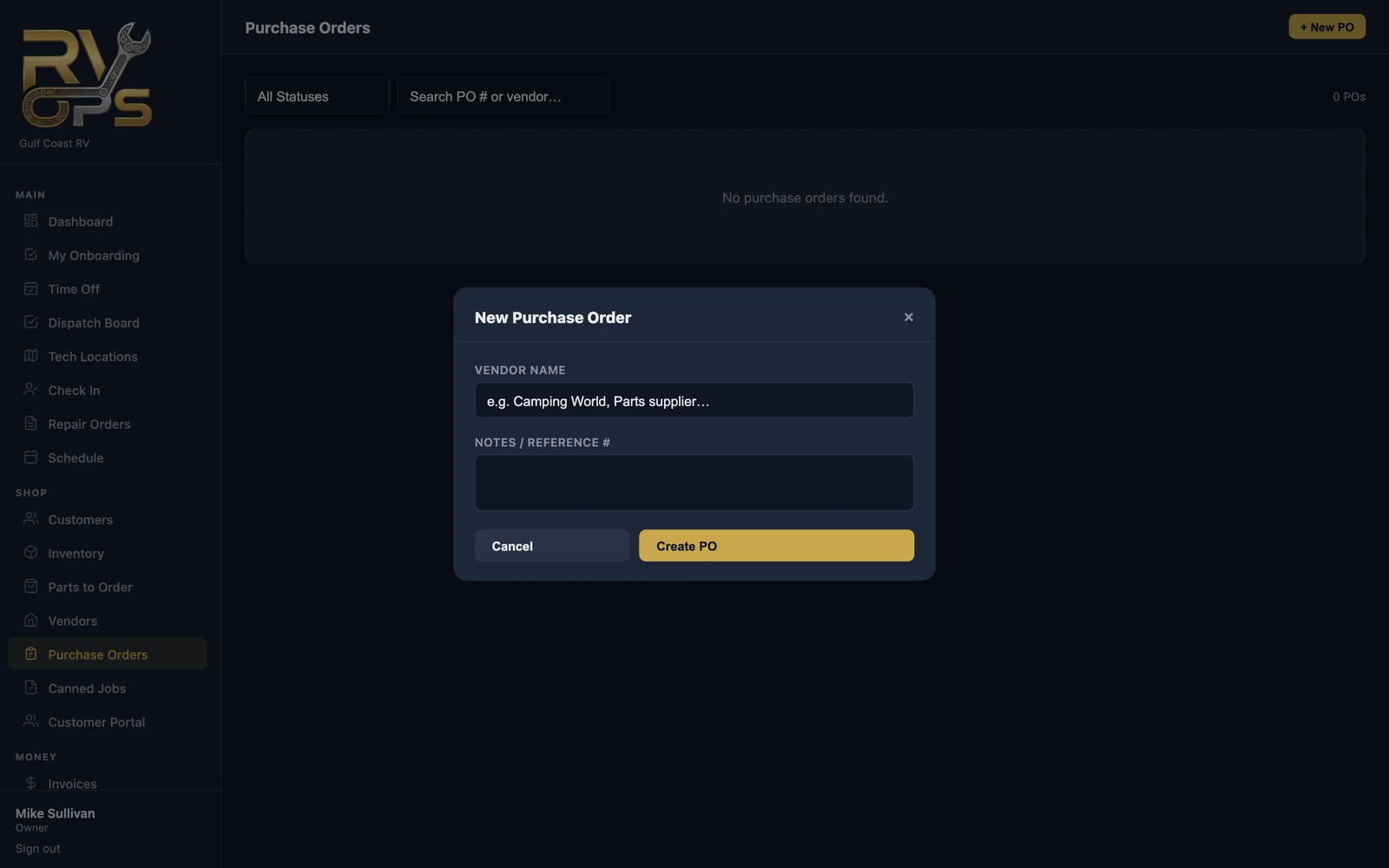
- Open Purchase Orders and click + New PO.
- Enter the vendor and any notes or a reference number, then click Create PO.
- Add the line items — part, quantity and cost.
- When you've placed the order, set it to Ordered — sent to vendor.
Receive the parts
- Open the PO and click Receive, or 📦 Scan to Receive to scan each box's barcode.
- Enter how many of each line arrived. Short shipment? Enter what came — the PO shows Partial until the rest arrives.
- Click ✓ Save Received Quantities.
What happens next, automatically:
- Your stock counts go up.
- Parts for repair orders switch to in stock on those ROs.
- When everything an RO was waiting on has arrived, your team gets a "parts ready" notification so the boat can go back into a bay.
- Core charges on received parts are tracked under Inventory → Core Deposits.
PO statuses
Open (still being put together) → Ordered → Partial (some received) → Received (all in). Filter the list by status to see what's still on the way.
Still stuck? Send us a message (or email [email protected]) and tell us what you were trying to do — we answer within one business day.